New to quickS3? Connect from Claude
First time connecting quickS3 from Claude? Create your account, add your storage, choose what Claude can reach, and approve, all in one pass.
You added QuickS3 from Claude’s Plugins directory (Connect the Claude app shows where), and a quickS3 tab opened. If you don’t have an account yet, that’s fine: you can set everything up from that tab and finish the connection without starting over. It takes a few minutes, and the request stays open for an hour.
1. Sign in or create your account
The tab opens on a sign-in page that tells you what’s about to happen.
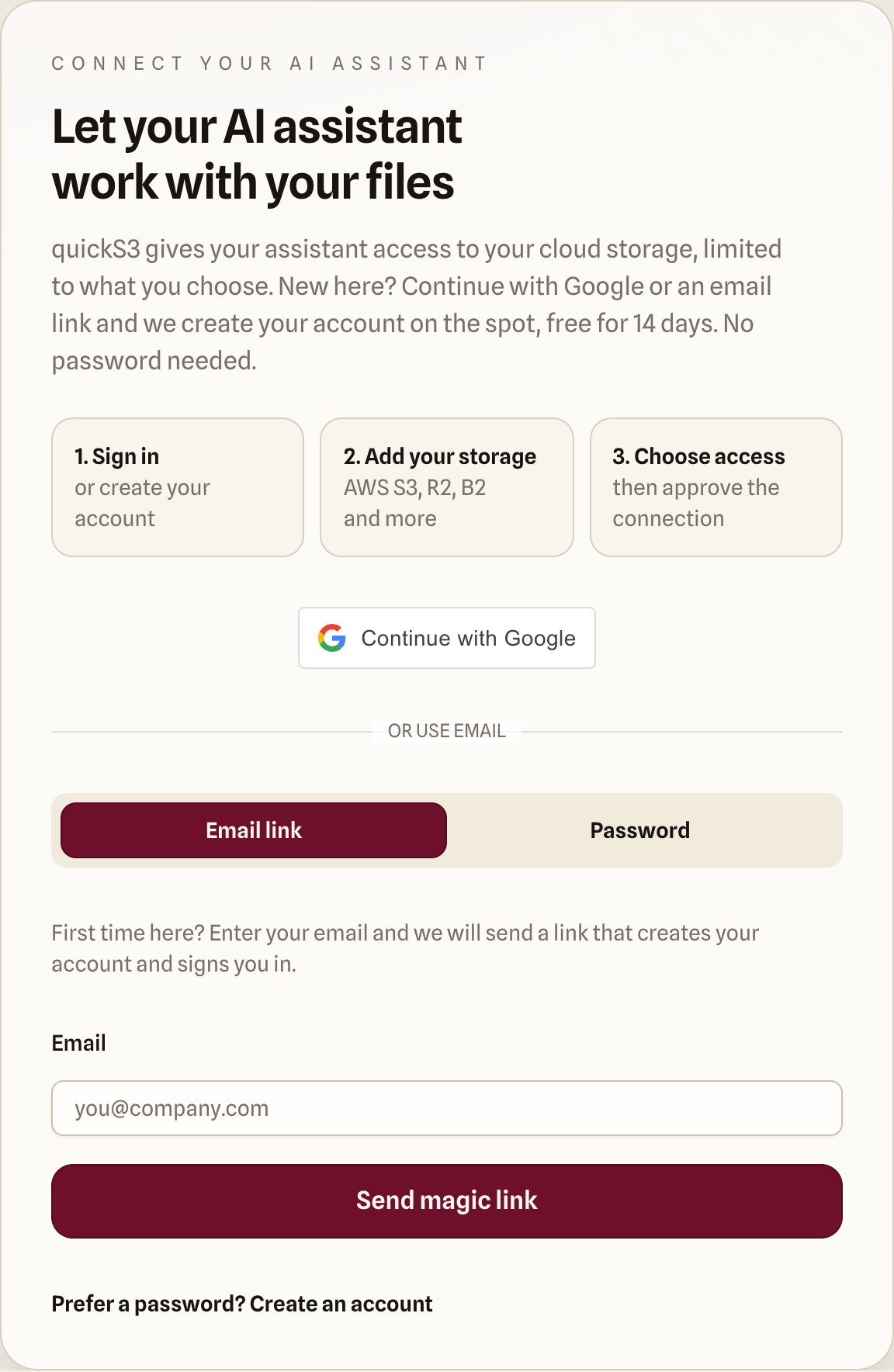
Pick whichever is easiest:
- Continue with Google. Your account is created on the spot.
- Email link. Enter your email and select Send magic link. The link in the email creates your account and signs you in.
- Prefer a password? Select Create an account at the bottom. You’ll confirm your email first, and the confirmation link brings you back to the connection.
Your new account comes with an organisation in your name, and you’re its Owner. It’s free for 14 days.
2. Connect your storage
After you sign in, you land on the Connect an AI client page. With a new account, the Set up access section shows two steps.
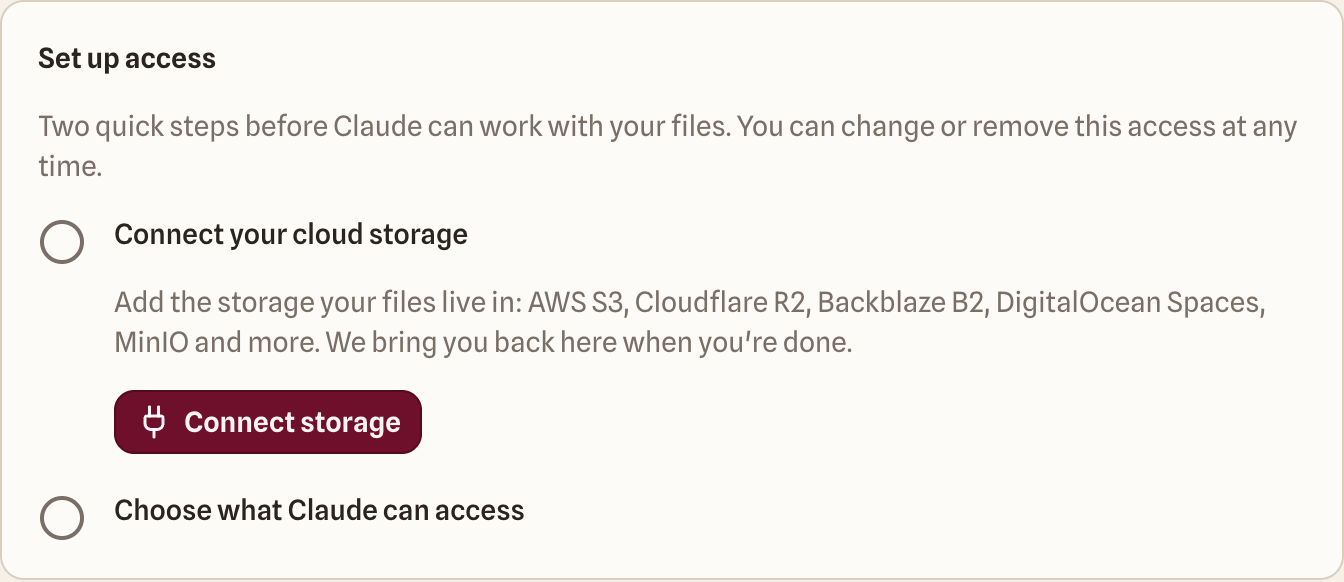
Select Connect storage and add the storage your files live in, such as AWS S3, Cloudflare R2, or Backblaze B2. Connect your storage walks through each provider.
While the connection is unfinished, a banner at the top of every quickS3 page takes you back. Select Continue connecting once your storage is added.

3. Choose what Claude can access
Back on the Connect an AI client page, the first step is ticked. Now decide what Claude can reach.
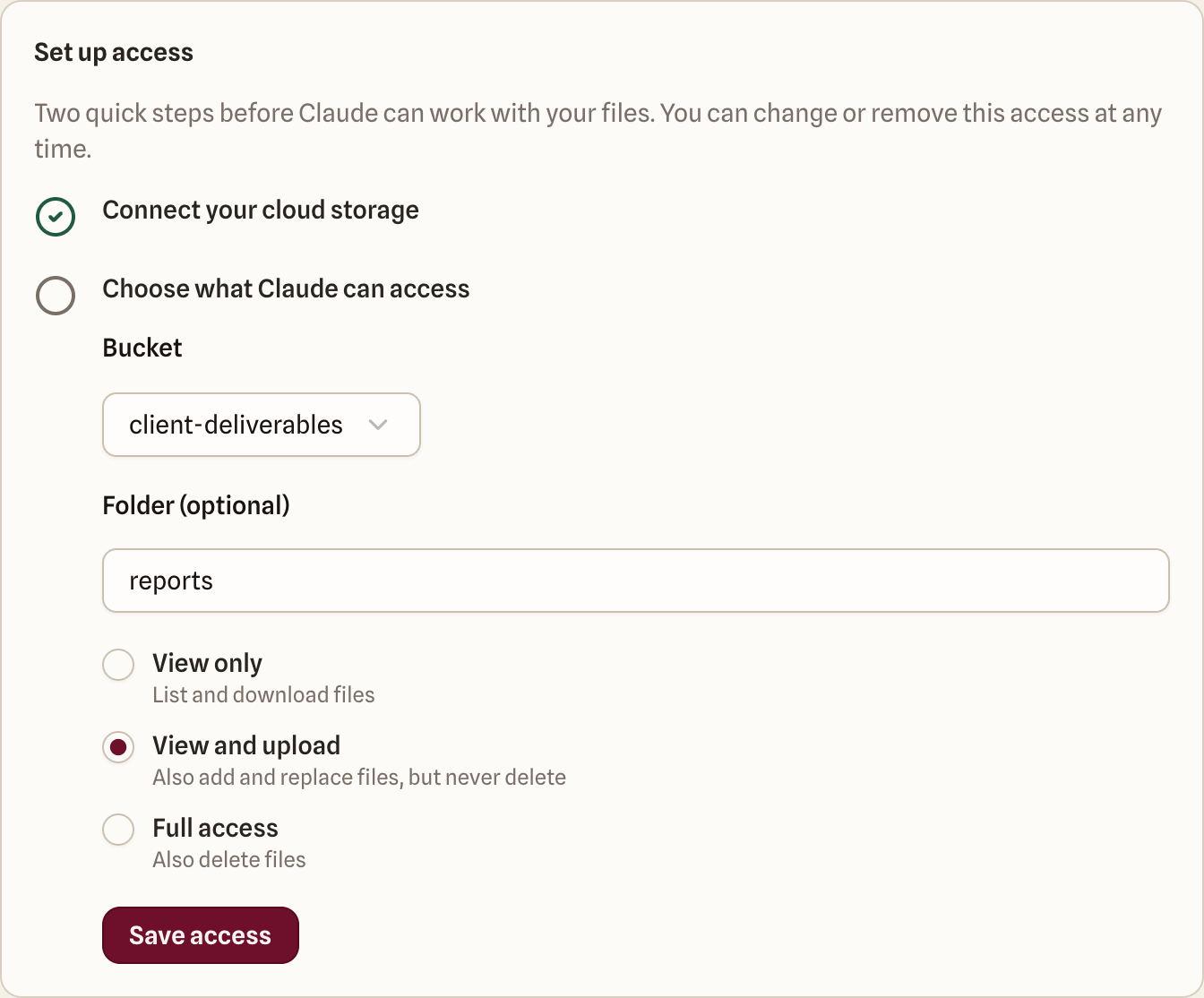
- Bucket. Pick one bucket.
- Folder (optional). Enter a folder to keep Claude inside it, like
reports. Leave it empty for the whole bucket. - Access level.
- View only: list and download files.
- View and upload: also add and replace files, but never delete.
- Full access: also delete files.
- Select Save access.
This creates a role named after what it covers, like “AI assistant: client-deliverables/reports”, and gives it to you. You can change it later on the Roles page, and create a role for an AI client covers more than one bucket.
4. Approve the connection
The new role now appears under Roles to delegate, already ticked.
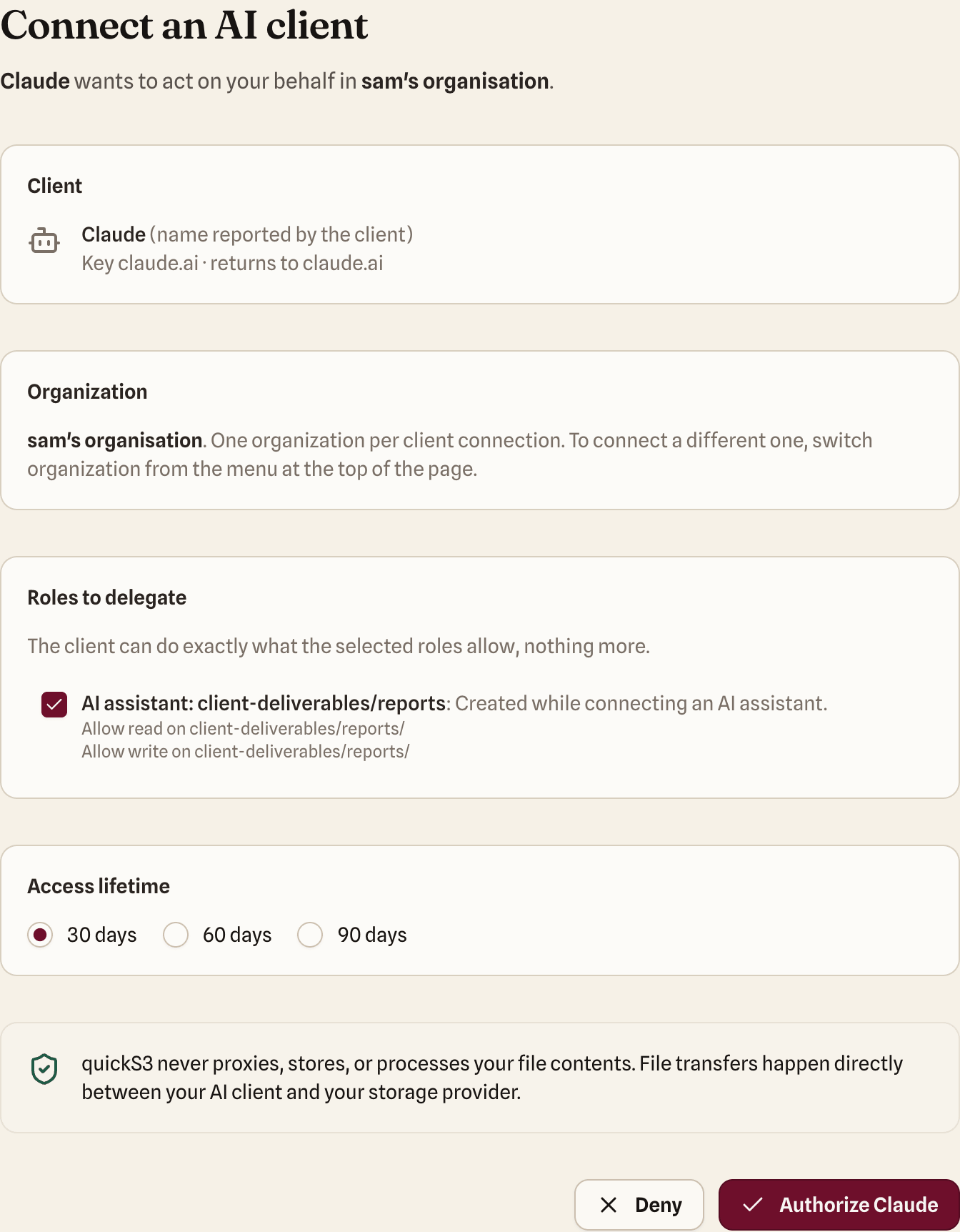
Pick how long the access lasts, then select Authorize Claude. You’re sent back to Claude. Try asking: “List my quickS3 connections.” Approve an AI client explains each part of this page.
In a chat, Claude can browse your files and create share links, but downloading or uploading usually needs a client that can run commands. Connect the Claude app explains why.
If the request expires
A connection request stays open for an hour and works once. If it runs out while you set up, you’ll see this page. Nothing was shared.
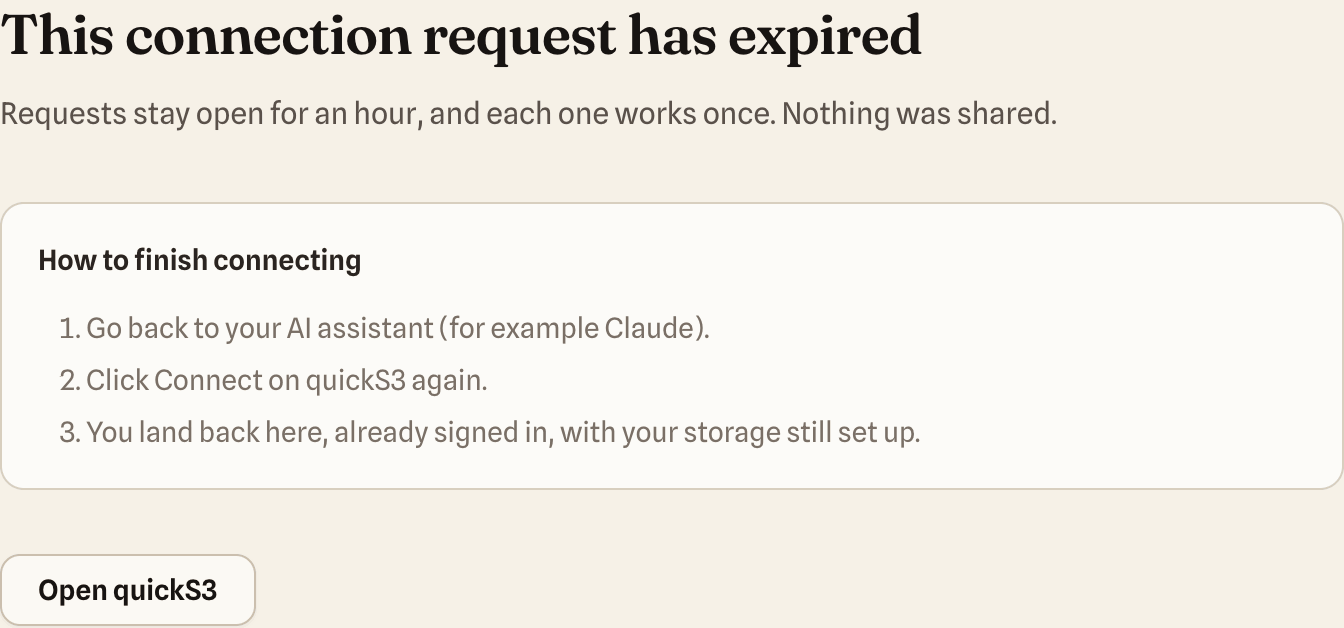
Go back to Claude and click Connect on quickS3 again. You land on the approval page already signed in, with your storage and role still there, so it only takes a moment.