Browse a bucket
Move around a bucket's folders, jump straight to a path, refresh the list after someone else uploads, and see why you might not see everything.
Open Buckets and select a bucket. You’ll see its top-level folders and files.
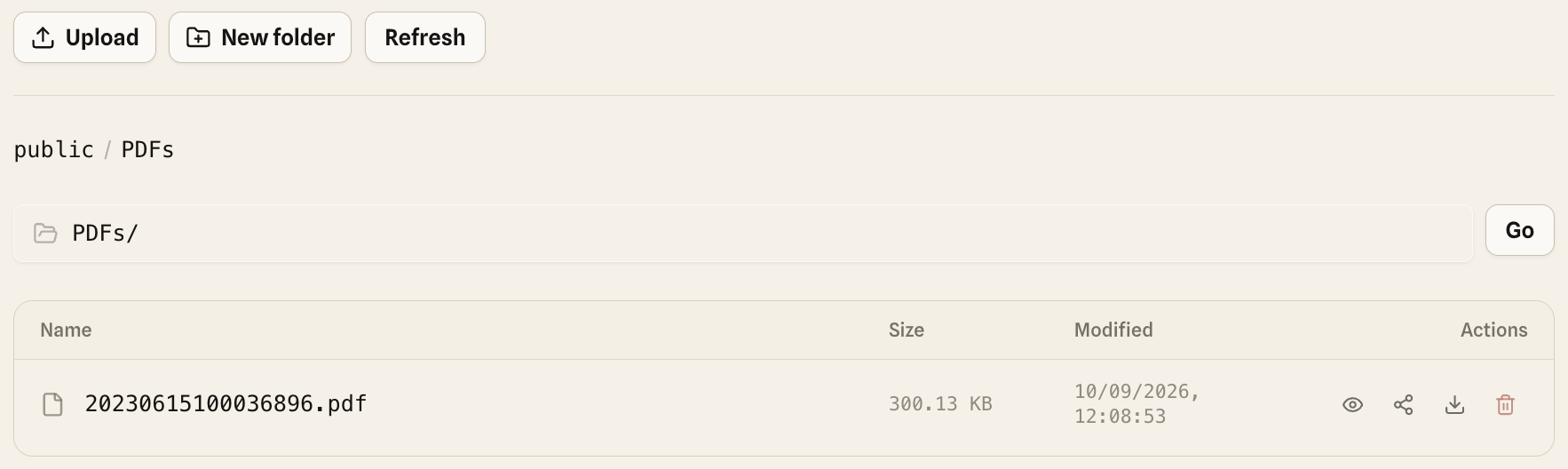
Getting around
- Open a folder by selecting its row.
- Go back up by selecting a folder name in the path above the list, like
public / PDFs. All buckets at the top of the page takes you back to Buckets. - Jump to a folder by typing its path, like
reports/2026/, in the path field and selecting Go. - Long folders load more files as you scroll down.
- Refresh reloads the list, for example after someone else uploads.
Each file row shows its size and when it was last changed, then icons to preview, share, download, or delete it. The toolbar has Upload, New folder, and, if you have Share and Write on the folder, Request files.
Bookmarking works: the page address includes the connection, bucket, and folder, so you can come straight back or send the address to a teammate with the same access.
Why two people see different things
Owners see everything. Everyone else sees only what their roles allow, so two people opening the same bucket can see different folders.
If a role only gives you reports/, the bucket opens showing just a reports/ folder. If a role denies a folder, that folder doesn’t appear at all, rather than showing an error.
Missing something you expected? Why can’t I do this? walks through how access is decided.