Member quickstart
You've been invited to quickS3. Find the storage you've been given, move around a bucket, and download, preview, share, or upload files.
Someone in your team invited you to quickS3 so you can get to files without logging in to a cloud console. This page covers the everyday things: finding your files, and getting them in and out.
Find your buckets
Sign in and open Buckets. You’ll see a card for each storage connection, listing the buckets you’ve been given. Select a bucket to open it.
If you belong to more than one organisation, check the name in the organisation switcher at the top right first. Each organisation has its own buckets and its own roles.
You only see what your roles allow. If Buckets says that none are assigned, nobody has given you a bucket-access role yet; it does not mean the storage is broken.
Move around
Inside a bucket, select a folder to open it. To go back up, select a folder name in the path above the list, or All buckets to return to Buckets. If you know where you’re going, type the folder path, like reports/2026/, into the path field and select Go.
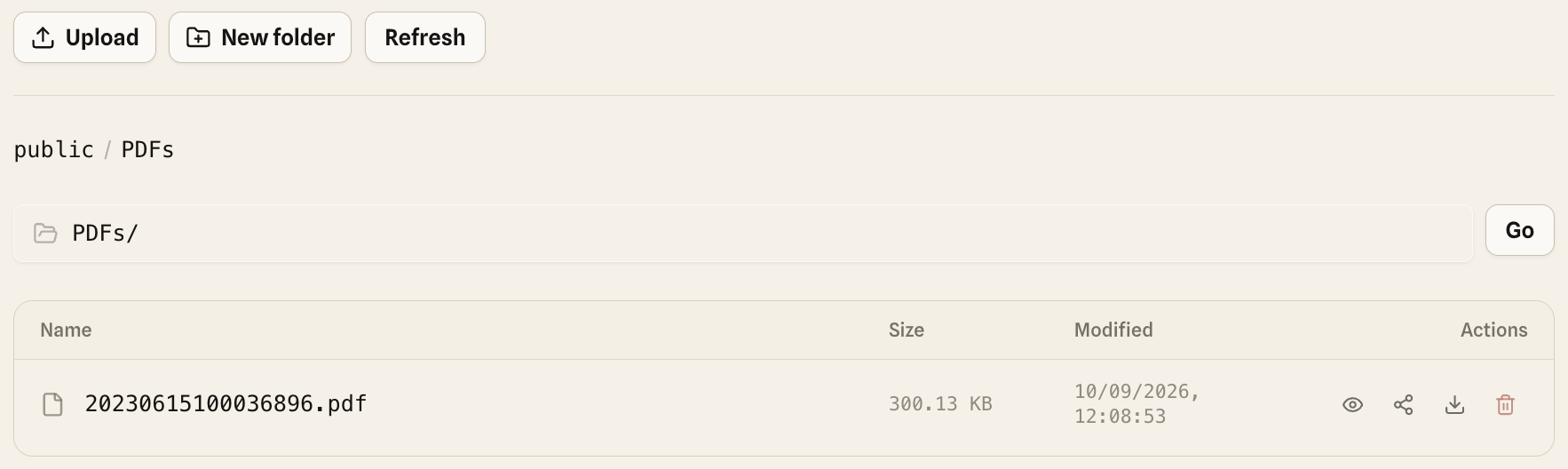
If a role only gives you one folder in a bucket, the bucket opens showing just that folder. Everything else stays hidden.
Work with a file
Each file row ends with up to four icons:
| Icon | Does |
|---|---|
| Eye | Opens a preview for images, PDFs, video, audio, and text. What can be previewed |
| Share | Creates a public download link that expires. Share a file |
| Down arrow | Downloads the file to your computer. |
| Bin | Deletes the file. Only shows when you have Write access. |
Deleting is permanent. quickS3 asks you to confirm, but there’s no recycle bin afterwards.
Upload
If your role lets you write here, Upload and New folder are enabled. Select Upload, check the destination folder shown in the panel, then select Select files. You can also drag files straight onto the file list. Uploads start as soon as you pick the files, so keep the tab open until they finish. More on this in Upload files.
If you upload a file with the same name as one that’s already there, quickS3 asks before replacing it.
When something’s missing
A greyed-out Upload button, a missing bin icon, or an empty Buckets page all mean the same thing: your roles don’t cover it. Ask an Owner or Admin in your team, and tell them where you need access, for example “Write in the reports/ folder of the finance bucket”. Why can’t I do this? explains how access is decided.
Nobody needs your password or a storage key to fix this, so don’t send them, even if someone asks.