Upload files
Upload files to a bucket straight from your browser, follow them in the upload queue, and work out why Upload is greyed out for a folder.
You need Write access to the folder you’re uploading to. If Upload is greyed out, you don’t have it there.
Upload
- Open the bucket and go to the folder the files should go in.
- Select Upload. The Upload files panel opens on the right.
- Check the destination under the title, like “Upload to public/PDFs/”, and the maximum file size.
- Select Select files and pick one or more files.
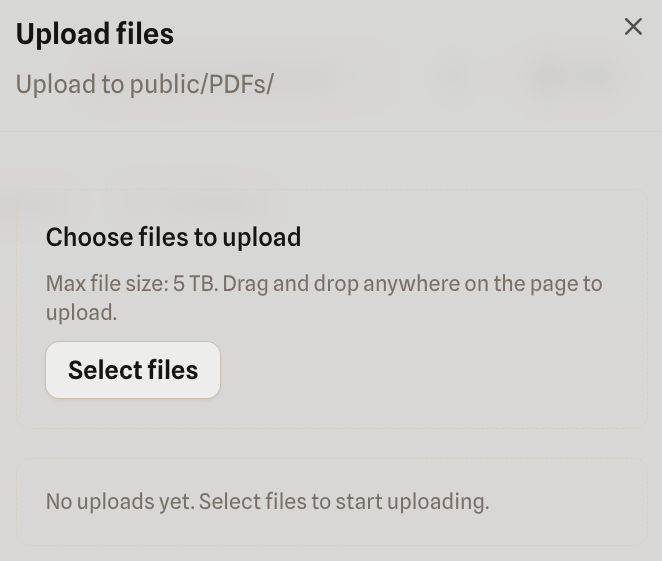
Uploads start as soon as you pick the files. There’s no separate start button. You can also drag files from your computer anywhere onto the bucket page.
Keep the tab open until the queue says Upload complete. for each file. Closing it stops uploads in progress, although big ones can be resumed.
Replacing a file
If a file with the same name already exists in that folder, quickS3 asks “Overwrite existing file?” and shows the size and date of the one that’s there. Select Overwrite to replace it, or Cancel to skip that file.
Overwriting is permanent: quickS3 doesn’t keep the old version. Rename your file first if you want to keep both.
The upload queue
Each file gets a row with a progress bar. Under the bar you’ll see one of:
| Message | Means |
|---|---|
| Waiting to upload. | It’s queued behind other files. |
| Preparing file fingerprint… | A large file is being prepared so it can be resumed later. |
| 42% · 120 MB / 300 MB | Uploading. |
| Retrying | A network hiccup; quickS3 is trying again on its own. |
| Upload paused. | You paused it. Select Retry to continue. |
| Upload complete. | Done. |
| Upload canceled. | You cancelled it. |
| An error in red | It failed. Select Retry, or see what went wrong. |
Use the pause and cancel buttons on a row to control an upload, and the ✕ on a finished row to clear it from the list.
Where your files go
Files go straight from your browser to your storage provider. They don’t pass through quickS3’s servers, unless an Owner has switched on the backend upload fallback for that connection. In that case the panel says “Backend uploads are enabled for this connection”.
Every upload is recorded in the audit log. For size limits and how big files are handled, see upload limits.