Edit, rotate, or delete a connection
Change a connection's settings, rotate its access key in the right order so nobody loses access, or delete the connection for good.
Only Owners can edit or delete connections. Admins can see the list and run Test connection, but they can’t see or change the settings.
Edit a connection
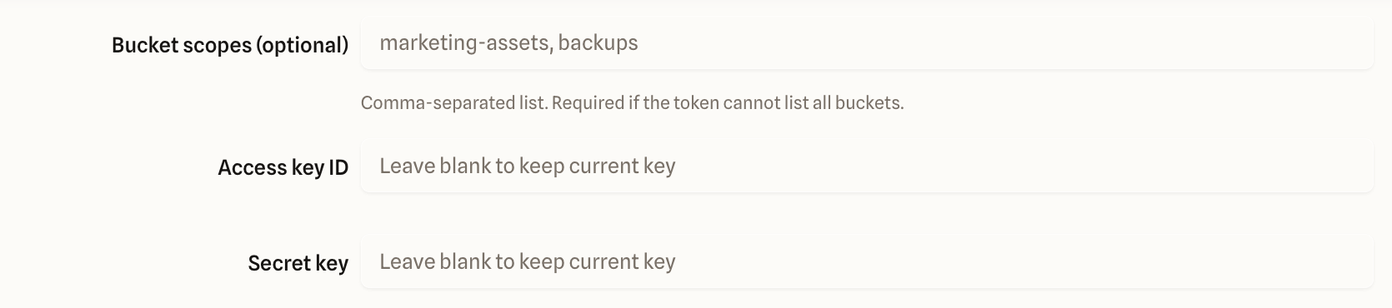
Open Connections and select Edit on the connection. The same form you used to create it opens, with everything filled in except the keys. Change what you need and select Update connection.
If you changed the keys, region, endpoint, or bucket scopes, quickS3 checks the new settings against your provider before saving. If the check fails, nothing is saved and the form shows the provider’s error, so a typo can’t break a working connection.
Rotate the access key
Swap keys regularly, and straight away if you think a key has leaked.
- Create a new key at your provider with the same access as the old one, or less.
- In quickS3, select Edit on the connection.
- Paste the new key into the key fields. The key fields are always empty in edit mode. Leaving them empty keeps the current key.
- Select Update connection. quickS3 tests the new key before saving it.
- Select Test connection to confirm, then open a bucket.
- Delete the old key at your provider.
Don’t delete the old key at the provider until step 5 works. If you do it the other way round, everyone loses access until the new key is in.
Delete a connection
Select Delete on the connection, check the details in the dialog, then select Delete provider.
Deleting removes the connection and its stored key from quickS3. Your buckets and files at the provider aren’t touched. You can add the connection again later, but it comes back as a new connection:
- Roles that pointed at the old connection stop granting anything. The role editor marks those rules with “This connection no longer exists”, and you’ll need to point them at the new connection.
- Bookmarks and share links for its buckets stop working.
- Uploads still in progress on that connection are cancelled first. If that cleanup can’t finish, the delete is refused. Wait a moment and try again.
Before you delete, check Roles for rules that use the connection and tell the people who rely on it.