Create and edit custom roles
Build a custom role from a Read-only, Uploader, or Full access template, adjust its rules to fit, and keep your roles tidy as your team changes.
A custom role is a named set of rules that says which buckets and folders someone can read, write, delete, or share. Give roles names that say what they’re for, like “Finance reports” or “Client uploads”, rather than naming them after a person. Then the next person who needs the same access gets the same role.
Create a role
- Open Roles and select Create role.
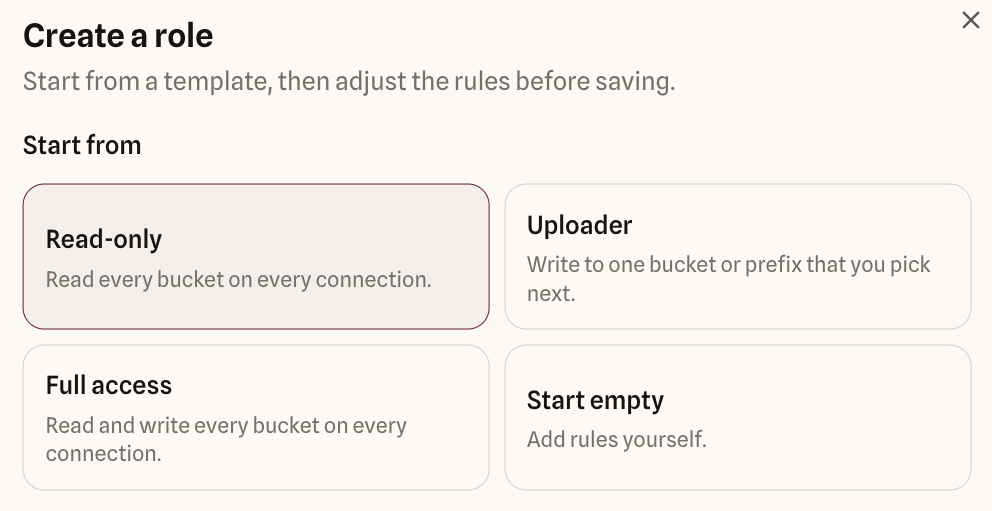
- Pick a starting point:
- Read-only: Read and Share on every bucket on every connection.
- Uploader: Read, Write, and Share on one bucket, without Delete, which you then point at the right place.
- Full access: Read, Write, Delete, and Share on every bucket on every connection.
- Start empty: no rules.
- Enter a Role name, and a Description if it helps, then select Create role.
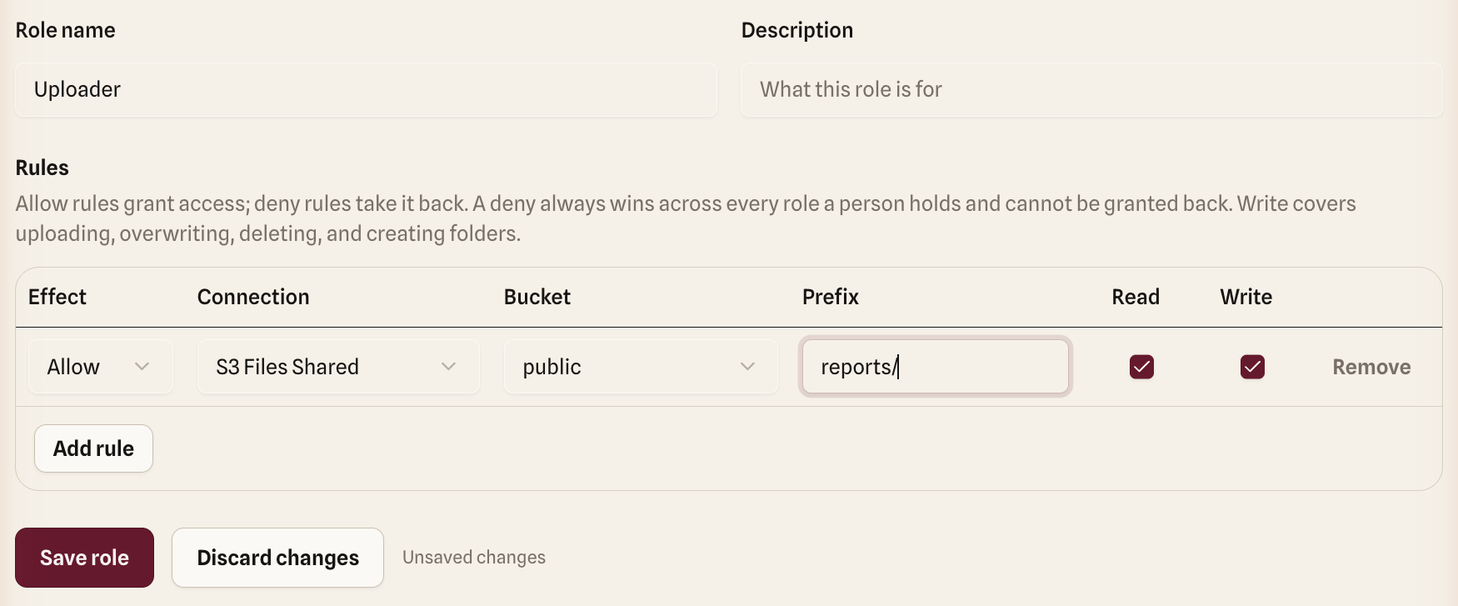
The role editor opens with the template’s rules filled in but not yet saved. Adjust them, then select Save role.
Read-only and Full access add one rule per bucket that exists when you create the role. Buckets added later aren’t included, so add rules for them yourself.
“Owner” and “Admin” can’t be used as role names.
Edit the rules
Each row is one rule: Effect, Connection, Bucket, Prefix, and the Read, Write, and Delete boxes. Select Add rule for another row, and Remove to delete one. How rules work explains what each part means.
The editor warns you about rules that won’t do anything:
- “No bucket named … on this connection”: the bucket doesn’t exist, maybe because of a typo or because it was deleted. A Remove button offers to clear these rules.
- “This connection no longer exists”: the connection was deleted. Point the rule at another connection or remove it.
- “A deny rule cancels at least one action granted here”: a Deny in the same role overrides this Allow.
- “Denies nothing in this role”: this Deny doesn’t overlap any Allow in the role. It can still block access granted by someone’s other roles.
Rules with no bucket, or with no action selected, are dropped when you save.
When changes take effect
Saving a role changes access for everyone who has it, straight away. That includes AI clients using the role. Check how many people use a role on the Roles list before you narrow it.
If you add a Deny, it applies to new actions immediately. A download that already started, or a download link already handed out, keeps working until it expires.
Delete a role
Open the role and select Delete role, then confirm. The role and its rules are deleted and removed from everyone who had it. People lose whatever access only that role gave them. Nothing in your storage is deleted.
Keeping roles tidy
- Prefer a few roles that match jobs over one role per person.
- Build broad access with Allow rules, and use Deny only to fence off something sensitive.
- Test a new or changed role with someone who isn’t an Owner. Owners can reach everything, so everything looks fine to them.