
How we keep your S3 safe
How quickS3 isolates your storage keys in your own organisation, enforces strict role-based access control on top of them, and keeps file contents out of our servers and out of your AI agent's context.
We recently made it possible to go from zero to a connected S3 bucket straight from Claude in a few minutes. As more teams connect Claude and other AI agents to their buckets, the same two questions come up again and again:
- Will my S3 keys or file contents end up in my AI agent’s context?
- Can quickS3 see my files?
Both are fair questions. You shouldn’t have to guess where your keys live, who can reach what, or where your bytes travel. Here is the short version first, followed by how quickS3 works under the hood and where the trust boundary actually sits.
TL;DR
- Where do my S3 keys live? Encrypted with AES-GCM inside your organisation’s own isolated store. They are never sent to browsers, AI agents, or even Owners.
- Can my AI agent see my S3 keys? No. The agent only gets an OAuth token for quickS3 and short-lived single-file URLs.
- Can my AI agent access everything the key allows? No. Every call is checked against custom allow/deny roles (deny wins), with no Owner/Admin delegation and no delete tool.
- Do file contents go into the agent’s context? No. Downloads and uploads use presigned URLs so bytes move directly between S3 and the agent’s local disk.
- Do file contents pass through quickS3? No. Transfers go directly between your client and your storage provider. We don’t pretend we couldn’t access what your key allows, so we encourage least-privilege keys.
1. Your keys live in your own isolated tenant
When you create a quickS3 account, you get your own organisation. Under the hood, each organisation gets its own dedicated, isolated database with a globally unique, unguessable ID.
There is no shared multi-tenant table holding everyone’s storage credentials side by side. Your members, roles, connections, encrypted keys, AI grants, and audit log all live inside your organisation’s own store. Nothing crosses from one organisation to another.
When you paste an access key into a connection:
- It travels over HTTPS and is encrypted at rest with AES-GCM using a server-side key before it is written to your organisation’s store.
- It is decrypted in memory only on our servers, only for the moment needed to list a folder or sign a short-lived URL.
- It is never sent back to anyone: not to a browser, not to an AI agent, and not even to an Owner. Edit forms always show the key fields empty.
Your AI agent never receives an S3 access key. It only holds an OAuth token issued to quickS3, tied to the specific user who approved it and the specific roles they chose.
2. Strict Role-Based Access Control on top of what your key allows
An S3 access key is a blunt instrument. Even a reasonably scoped key often covers an entire bucket, or several buckets, with both read and write permissions. Handing that key directly to a teammate or an AI agent means they get everything the key can do.
quickS3 puts a strict, human-readable Role-Based Access Control (RBAC) layer in front of your keys.
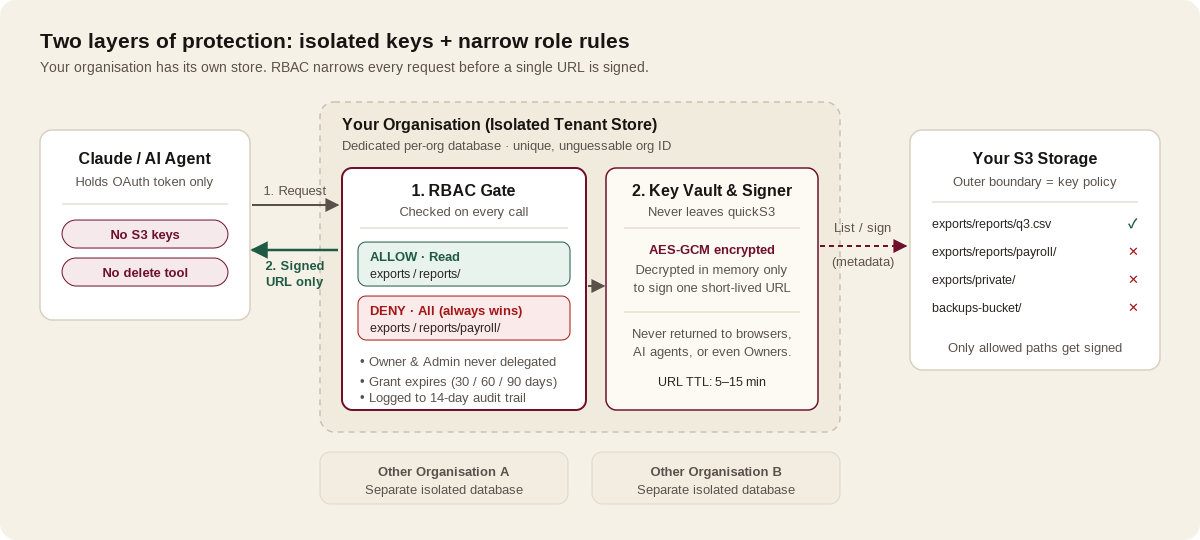
Here is how the rules work:
- Scoped to connection, bucket, folder, and action. A role is a list of explicit Allow and Deny rules for Read, Write, Delete, and Share. You can let an agent read
exports/reports/while denyingexports/reports/payroll/and hiding every other bucket completely. - Deny always wins. Across every role a person holds, a single matching Deny overrides any Allow. Your deny rules also follow your agents, so you can never delegate access you don’t have yourself.
- Owner and Admin can never be delegated. AI agents can only use custom data-access roles. They can never manage your team, edit roles, or read organisation settings.
- No delete tool for agents. The quickS3 MCP server exposes listing, download, upload, and share tools. There is no delete tool at all.
- Checked live on every single call. Every time an agent calls a tool, quickS3 checks the OAuth token, the active grant, the user’s current membership, and the role’s current rules inside your organisation’s store. Tighten a role, untick it from someone, or revoke an agent grant, and it takes effect on the very next call.
- Expiring grants and an audit trail. Every AI grant expires automatically after 30, 60, or 90 days, and every allowed or denied action is recorded in your 14-day audit log.
3. Data never goes through quickS3 or into your agent’s context
Many S3 MCP servers behave like a virtual file system: the agent calls get_object, the server downloads the file from S3, and the server hands the file’s contents back inside the tool result. That means two things happen at once: the file passes through the server, and the raw contents land straight inside the LLM’s conversation context.
quickS3 does neither. Instead, quickS3 acts strictly as a control plane that hands out short-lived presigned URLs.
How downloads work
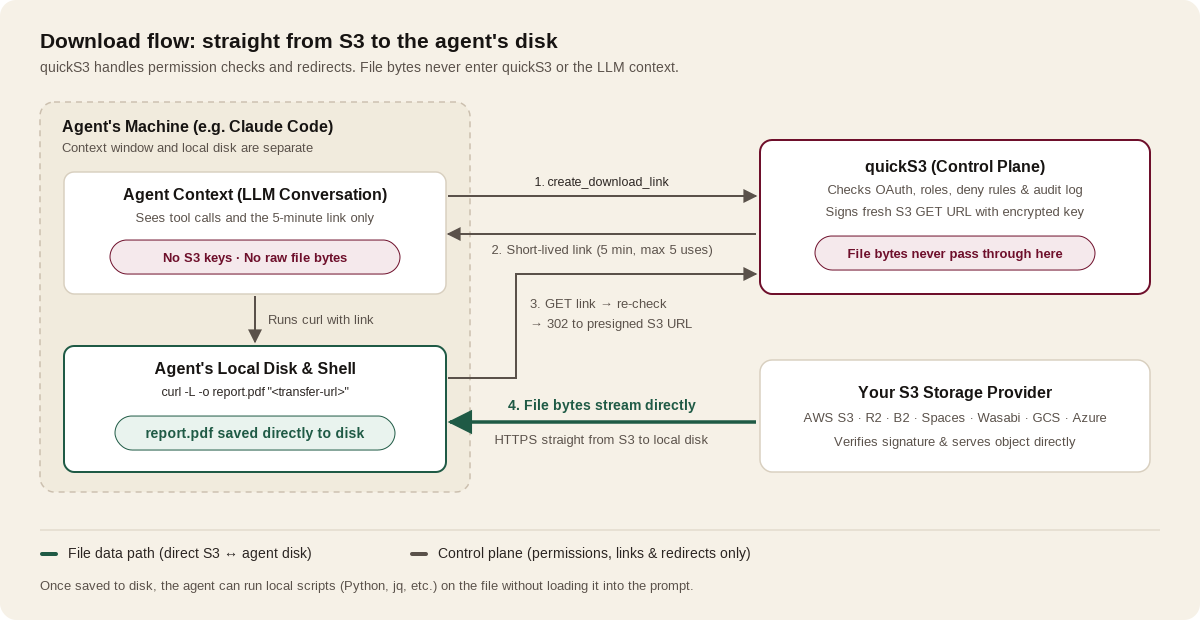
- The agent calls
create_download_linkfor a specific file. - quickS3 checks the agent’s OAuth token and roles, and returns a short-lived transfer link (valid for 5 minutes, up to 5 uses). No file bytes are in the tool response.
- The agent’s local environment (for example, Claude Code running
curl -L -o report.pdf "<link>") opens that link. - quickS3 re-checks access, logs the download, and responds with a redirect to a freshly signed S3 URL.
- The file streams directly over HTTPS from your S3 provider to the agent’s local disk.
Notice what stays out of the LLM’s context window: both your S3 keys and the file itself. Once the file is on disk, the agent can inspect or transform it with local scripts (Python, jq, shell tools) without dumping a 50 MB CSV or a sensitive document into the prompt unless you ask it to.
How uploads work
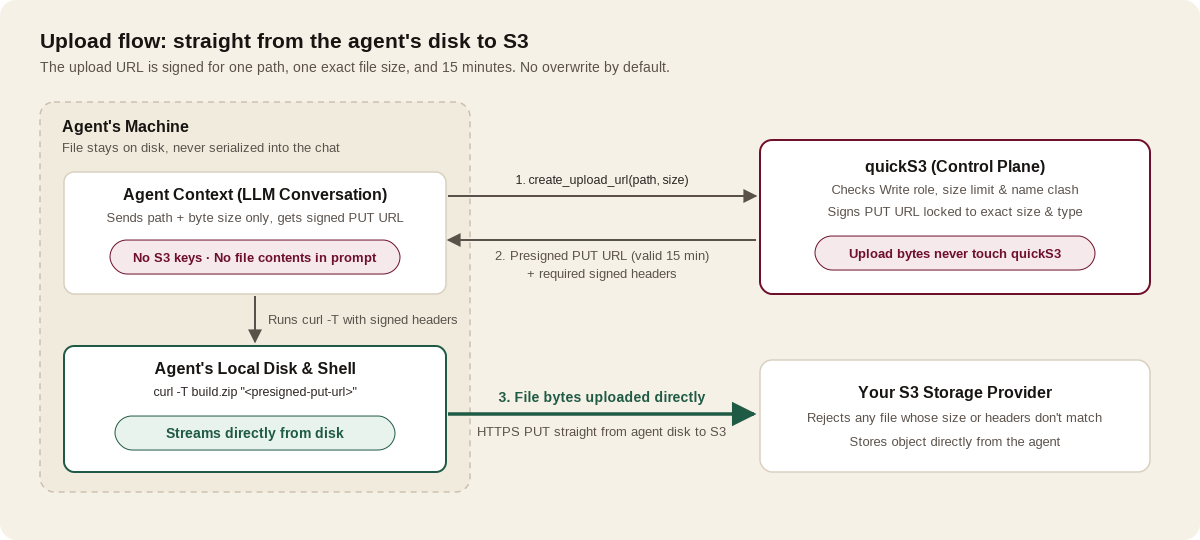
- The agent calls
create_upload_urlwith the destination path and exact file size. - quickS3 checks Write permission, verifies size limits, and checks that it won’t overwrite an existing file (overwrites are blocked by default unless you explicitly confirm).
- quickS3 returns a 15-minute provider-signed PUT URL locked to that exact file size (and content type, if given), along with the required headers.
- The agent’s shell (
curl -T ...) uploads the file directly from its local disk to your S3 provider. If the bytes don’t match the signed size or headers, S3 itself rejects the upload.
Again, the bytes never touch quickS3’s servers and never pass through the chat context.
(The one exception in the entire product is an optional, off-by-default setting for the web app called Allow uploads through quickS3, which lets Owners work around broken browser CORS for files up to 100 MB. It is never used for AI agent transfers.)
4. An honest word about trust: can quickS3 see my files?
We don’t want to hide behind marketing language here.
We do not see, proxy, cache, inspect, or train on your files. In normal operation, your file contents travel straight between your browser or agent and your S3 provider, never touching quickS3’s servers.
At the same time, we won’t pretend we technically couldn’t. Because quickS3 holds the encrypted credentials needed to list your buckets and sign presigned URLs on your behalf, quickS3 technically has the ability to access whatever the key you gave us can access. Anyone offering a hosted tool that signs S3 URLs with your keys has that same technical capability. If someone claims otherwise, be skeptical.
Instead of pretending that trust boundary doesn’t exist, we design around making it as small and controllable as possible:
- Scope your storage key. Give quickS3 a dedicated key limited to only the buckets (and permissions) you actually want to manage through it. Your provider’s IAM policy is always the outer wall. See give quickS3 the smallest key that works.
- Keep your own audit trail and backups. Turn on bucket versioning and access logging at your storage provider if you want an independent record on your side.
- Cut us off anytime. Delete the key at your storage provider and quickS3 loses access immediately. You don’t have to take our word for it.
Want to dig into the technical details? Read our security model and limitations, how storage keys are protected, and how AI file transfers work. Ready to try it? Connect Claude to your S3 buckets in a few minutes.
Read next
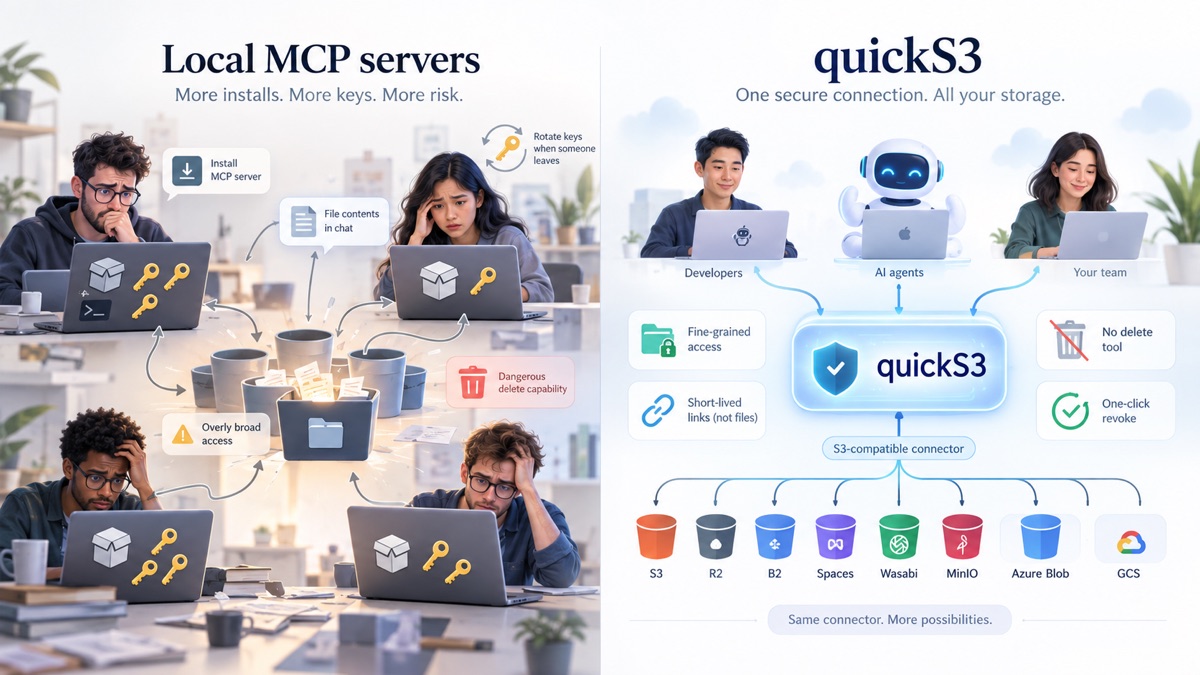
How AI agents reach S3: MCP servers compared
Most S3 MCP servers need an access key and a local install on every computer. We compare them with quickS3 on keys, installs, per-agent scope, file privacy, revocation and real cost.

Connect Claude Code to your S3 buckets with quickS3
Add the quickS3 plugin to Claude and Claude Code, choose which roles it may use, and let your AI agent browse, upload, and download files in your S3 buckets.

Connect Codex to your S3 buckets with quickS3
Install the quickS3 plugin in Codex, choose which roles it may use, and let your AI agent browse, upload, and download files in your S3 buckets.