
How to give someone access to your S3 bucket (without IAM)
Share an S3, R2, B2, Wasabi, or Spaces bucket with a manager, vendor, or client: invite them by email, limit them to a folder, and see what they do.
Someone needs files from your bucket. A manager wants the invoices your ERP archives every night. An agency has to deliver video. A client wants to pull their reports without emailing you each time. You want them to see one folder, not your whole account, and you want to know what they did with it.
This is why I built quickS3. As a developer, I had an ERP system archiving invoices to S3, and a manager who needed to get at them. Every option I had was built for engineers: create an IAM user, write a policy, hand over an access key, and teach a manager to use an S3 client. Or keep downloading the PDFs myself whenever someone asked.
Object storage has no “Share” button. Whether your bucket lives on AWS S3, Cloudflare R2, Backblaze B2, Wasabi, or DigitalOcean Spaces, the built-in answer is some version of “create a credential and send it to them”. This guide shows how to invite the person by email instead, and pick exactly what they can reach.
The short version
- Connect your bucket to quickS3 once.
- Create a role that allows one bucket or folder, with Read, Write, Delete, or Share.
- Invite the person by email with that role.
- They sign in with a magic link or Google and browse, download, and upload (if you allow it) in their browser.
- When they no longer need it, remove them. Their access ends immediately.
They don’t need an access key, an S3 client, or an account with your storage provider. Everything they do is in your audit log under their own email.
Step 1: Connect your bucket
Add your storage as a connection, using one set of credentials that stays with quickS3. They’re encrypted on the server and never sent to anyone’s browser or to AI agents.
MinIO and other S3-compatible services work too. Your bucket and your files stay where they are, and whatever writes to them today, like an ERP export or a backup job, keeps working unchanged.
Step 2: Create a role for what they should reach
A role is a list of the buckets and folders someone can reach, and what they can do in each. Nothing is allowed by default, so a role only grants what you add to it.
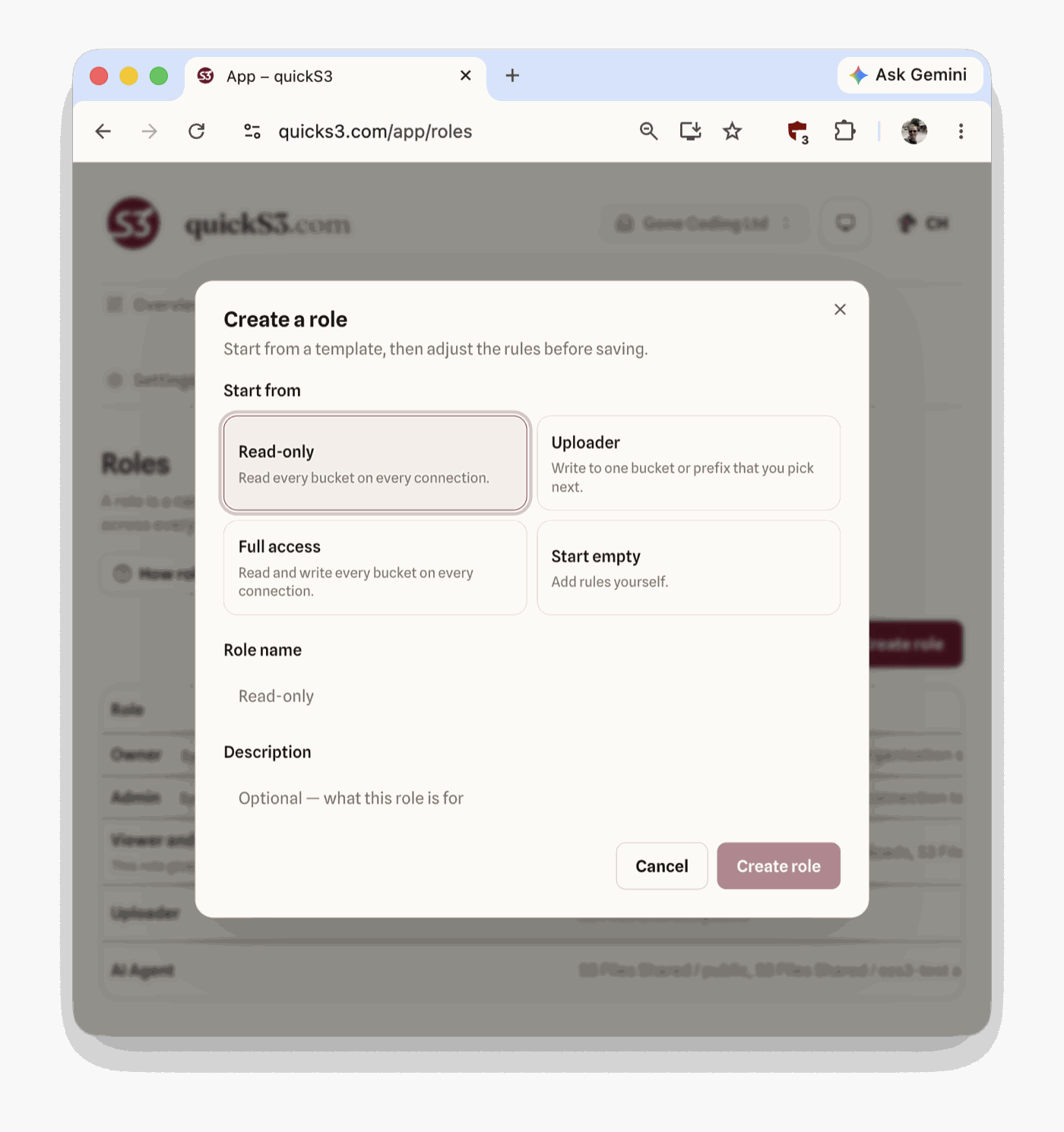
- Open Roles and click Create role.
- Under Start from, pick a template. For someone outside your team, Start empty or Uploader is safer, because Read-only and Full access cover every bucket on every connection.
- Enter a Role name that says who it’s for, and click Create role.
- In Rules, add a row for each place they should reach: an Effect, a Connection, a Bucket, an optional Prefix for a folder, and Read, Write, Delete, or Share.
- Click Save role.
Here’s a role that lets someone read the invoices folder of one bucket and nothing else:
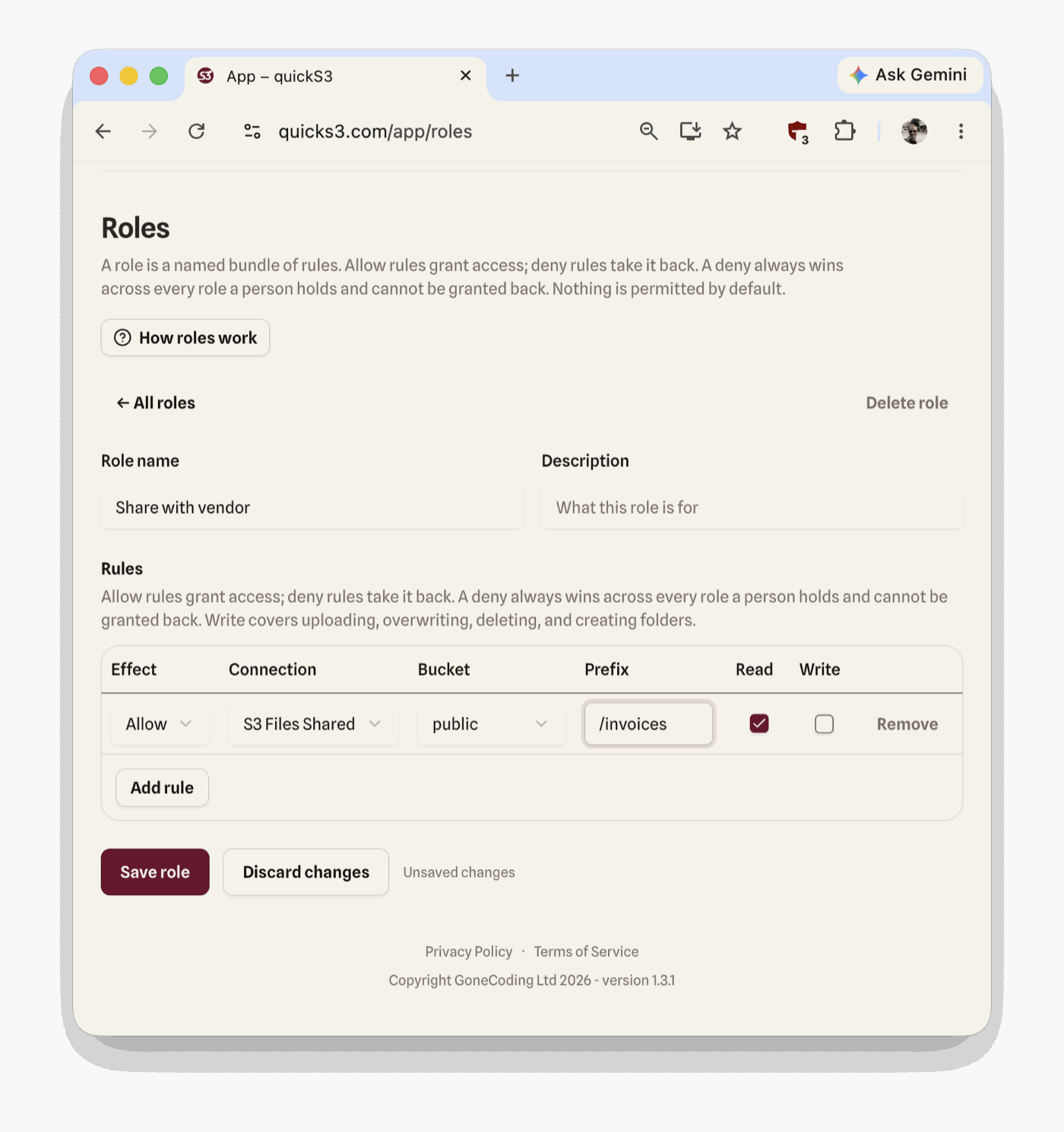
A few things to know about rules:
- Read lets them browse and download. Write covers uploading, overwriting, and creating folders. Leave it unticked for read-only access.
- Delete lets them delete files and empty folders. Leave it unticked for anyone outside your team, so nothing they do can remove your files.
- Share lets them create public share links and file requests. It adds nothing on its own: a share link also needs Read, and a file request also needs Write.
- The prefix is a folder name.
invoices,/invoices, andinvoices/all mean the same thing. - A deny always wins. To hide a subfolder such as
invoices/payroll/, add a Deny rule for it. It applies across every role the person has, and no other role can grant it back. - One role can cover folders on different connections, like one on R2 and another on Wasabi. The person doesn’t need to know where anything lives.
Step 3: Send the invite
- Open People and click Invite.
- Enter their Email and tick the role you just created.
- Click Send invite.
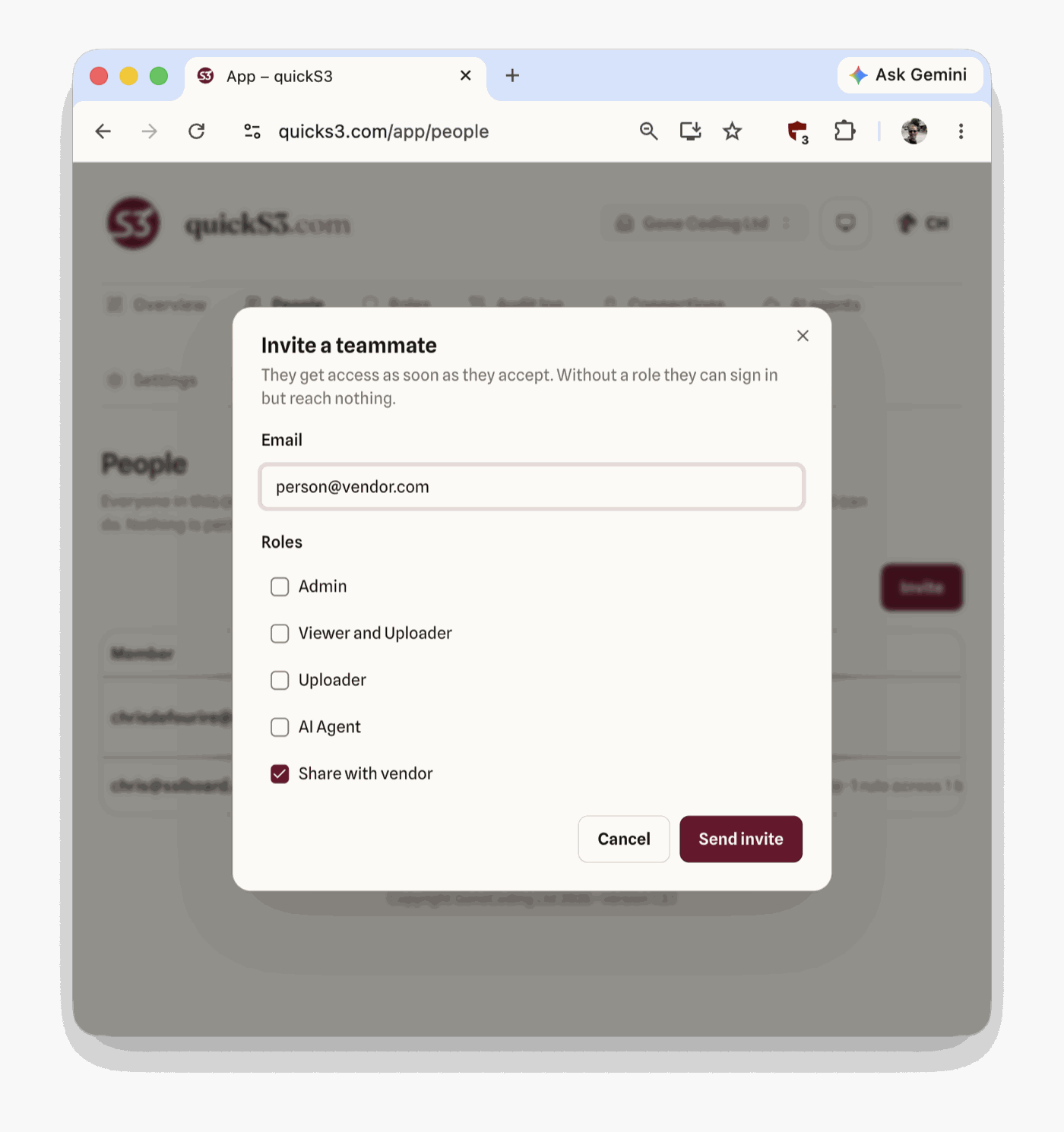
They get access as soon as they accept. If you invite someone without a role, they can sign in but reach nothing, so you can invite first and decide on access later.
Step 4: Check activity, change access, or remove it
Every upload, download, and denied request shows up in the audit log with the person’s own email. When someone says “I never got that invoice”, you can check. Logs are kept for 14 days.
To change what they can reach, edit the role, or tick and untick roles next to their name on People.
To end their access, remove them from People. It takes effect immediately. There’s no key to track down and nothing to rotate.
Other ways to share a bucket
If you’ve searched this before, you’ve met the built-in options. They all work. They just weren’t designed for handing a folder to someone who doesn’t use a command line.
Sending an access key
This is the default on every provider: an IAM user’s access key on AWS, an API token on R2, an application key on B2, a sub-user’s keys on Wasabi, a Spaces access key on DigitalOcean. You scope it as tightly as the provider allows, then email or paste it to the other side.
- Once you send it, you don’t control it. It ends up in a password manager, a script, or an email thread you’ll never see.
- Every provider scopes keys differently. Some can be limited to a folder, some only to a bucket. If your files are on two providers, that’s two keys with two permission models.
- The person can’t just open it in a browser. They have to install and set up an S3 client before they see a single file. For a manager or a client, that’s usually where it stops, and the requests come back to you.
- If three people share the key, your logs show one identity, and you can’t tell who did what.
- Nobody remembers to delete it. Keys made for a two-week job are often still active years later.
IAM policies on AWS
On AWS you can grant another AWS account access with a bucket policy or a role it assumes. That only works if the other side has an AWS account and an admin willing to set up their half, and getting it right means JSON policies on both sides, with separate rules for listing a bucket and reading its objects. It’s the right tool for connecting two companies’ pipelines. It’s a lot to ask of a manager who wants last quarter’s invoices.
Presigned URLs
A presigned URL gives access to one file for a limited time: at most 7 days on AWS, and less when it’s signed with temporary credentials. It’s fine for a single file, but it isn’t a way to share a bucket. The person can’t browse or upload, and you generate a new link for every file.
Making the bucket public
Everything becomes readable by anyone who finds the URL, which is why AWS now blocks public access on new buckets by default.
Just need to send one file?
Inviting someone is for ongoing access. For a single file, create a share link instead: click the share icon next to the file, pick how long the link should last, and click Create link.
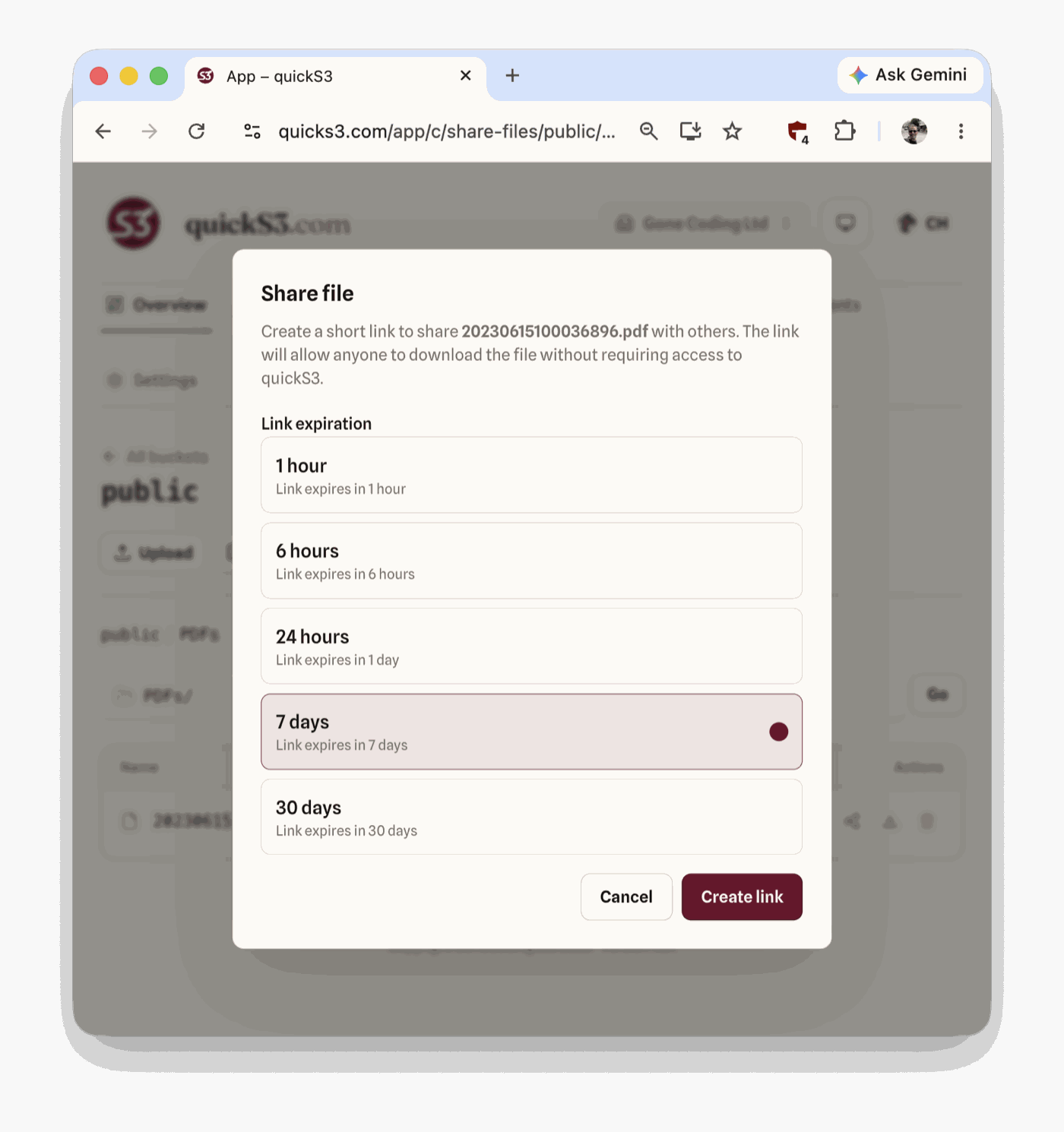
The link is short (quicks3.com/shrt/…) and read-only, and anyone who has it can download that one file until it expires, without a quickS3 account. Every download shows up in your audit log. AI agents connected to quickS3 can create share links too, within the access you’ve delegated to them.
FAQ
How do I share an S3 bucket with an external vendor?
Invite the vendor’s people by email with a role that allows only their folder. They work in the browser without an account on your storage provider, each person’s actions are logged under their own email, and removing them ends their access immediately.
How do I give someone access to only one folder?
Set the Prefix on the role’s rule, such as invoices. They can’t see anything outside it. Add a deny rule to hide a subfolder they shouldn’t open.
How do I give someone read-only access to a bucket?
Create a role with Read ticked and Write unticked for that bucket or folder, and invite them with it. The Read-only template grants read on every bucket, which suits a trusted teammate more than an outsider.
Does the other person need an AWS, Cloudflare, or Backblaze account?
No. They only need an email address. quickS3 talks to your storage provider with your connection’s credentials, and your provider never sees theirs.
Does this work if my files are on more than one provider?
Yes. Connect each provider once, and a single role can allow folders on any of them.
How is this different from sharing a presigned URL?
A presigned URL is for one file. An invite gives someone a folder they can browse for as long as you choose. You can see what they do there and change their access at any time.
The Team plan is $19 per month for 10 users, then $2 per user, with unlimited roles and a 14-day free trial. No credit card needed. Sign up, connect a bucket, and send your first invite.
For maintained access procedures, use the invitation and role-assignment documentation.
Read next

How to share S3 files with customers (without IAM)
Send a customer one file, collect files from a client, or give them their own folder in your S3, R2, or B2 bucket. No IAM users, access keys, or public buckets.

Set up an AI Agent role in quickS3
Create a dedicated role for your AI agent, assign it to yourself, and delegate it to Claude Code or Codex. Plus why an owner can't hand over the Owner role.
Backblaze B2 web interface for teams: application keys, CORS, and setup
Give your team a web interface for Backblaze B2 without sharing your account. Create an S3-compatible application key, set CORS, and scope access by folder.