---
title: Share a folder with a link
description: "Send a link that opens one folder in quickS3 for anyone who has it, to view and download, and optionally to upload or delete, without an account."
section: Files
order: 87
audience: [owner, admin, member]
status: published
lastVerified: 2026-11-21
sources:
- web/src/components/app/bucket-browser/ShareFolderDialog.tsx
- web/src/components/folder/FolderLinkPage.tsx
- src/routes/folder-links.ts
- src/objects/routes/folder-link.ts
- src/lib/folder-links.ts
---
A shared folder is a link that opens one folder in the quickS3 file browser for anyone who has it. It's for working with people outside your organisation, like a client who should see and download their deliverables, or a contractor who also needs to upload. They don't sign in. They see your organisation's name, the folder, and what's inside it, and nothing else.
To only collect files, without letting people see what's there, use a [file request](/docs/files/file-requests/) instead. To send one file, use a [download link](/docs/files/share-links/).
## Share a folder
1. Open the folder and select **Share folder** in the toolbar. You need Read and Share on the folder. Without them, or if your organisation has switched shared folders off, the button isn't shown.
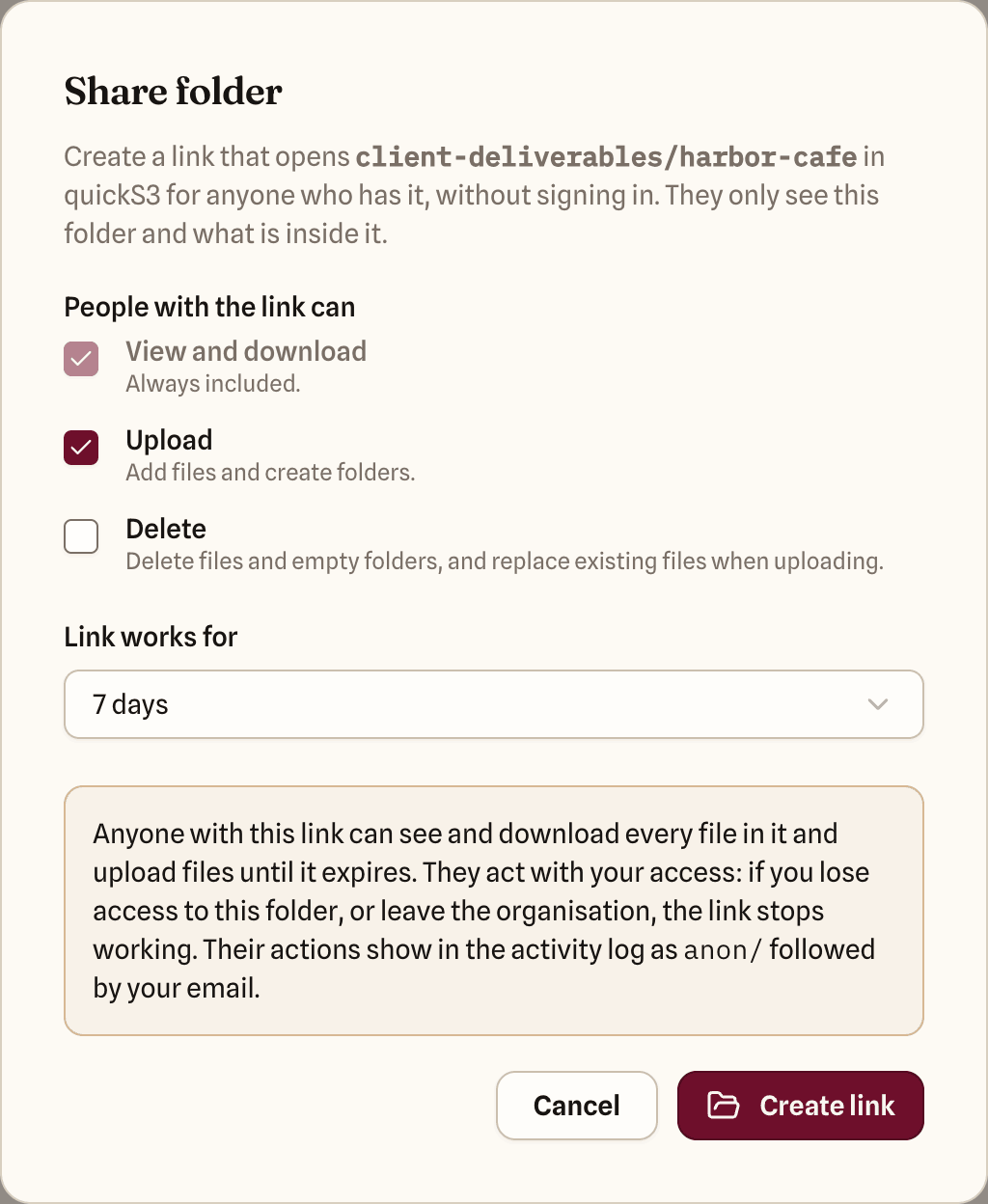
2. Choose what people with the link can do:
- **View and download** is always included.
- **Upload** lets them add files and create folders. It's available when you have Write on the folder.
- **Delete** lets them delete files and empty folders, and replace existing files when they upload one with the same name. It's available when you have Delete on the folder.
3. Choose how long the link works. 7 days is selected to start with.
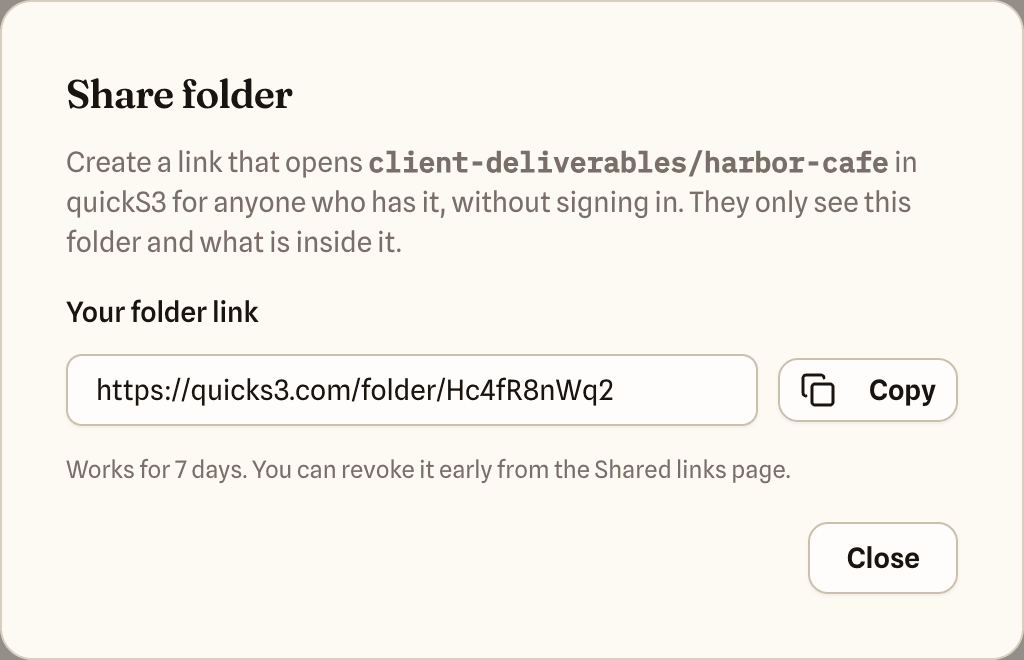
4. Select **Create link**, then **Copy**, and send the link.
Share folder is in the toolbar of the folder you have open.Tick only what the people you send it to need.Copy the link and send it.
You can never pass on more than you have. An option your role doesn't allow on the folder is greyed out, and quickS3 checks again when the link is created.
## What people with the link see
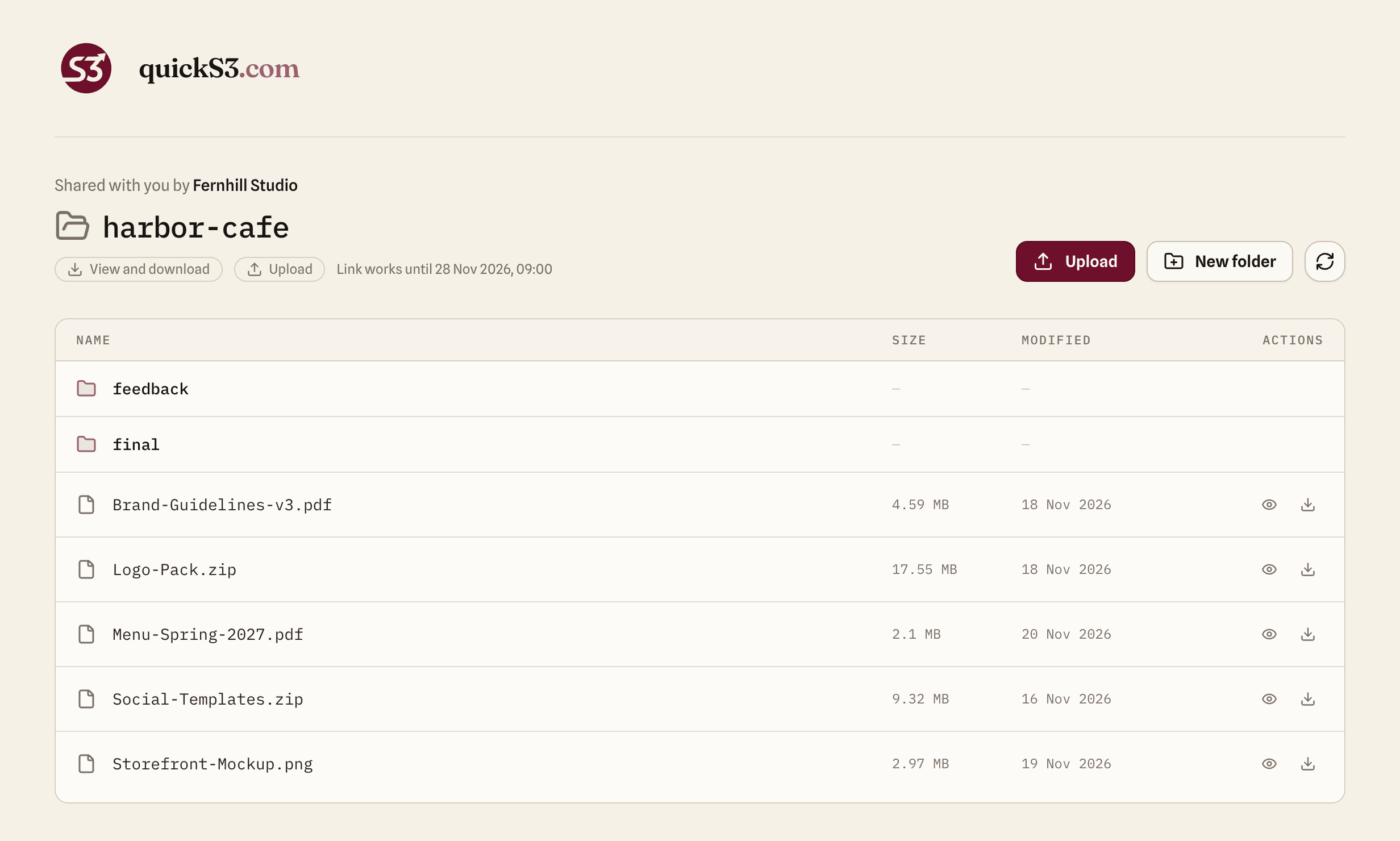
The link opens the quickS3 file browser, limited to the folder you shared. They can open the folders inside it, preview and download files, and, if the link allows it, upload with progress and cancel, create folders, and delete. They can't go above the shared folder, see other buckets, see who else is in your organisation, or create links of their own.
What someone with a link that allows Upload sees. There are no delete icons because the link does not allow Delete.
Anything inside the folder that you can't see yourself, for example because of a deny rule, stays hidden from them too.
## Replacing files needs Delete
Uploading a file with the same name as an existing one replaces it, which loses the old file. A link that allows Upload but not Delete never replaces files: the person is asked to rename the file instead. Allow Delete as well if they should be able to update files in place.
## Activity log
Everything people do through the link is recorded in the [audit log](/docs/audit/overview/) with `anon/` followed by your email as the user, for example `anon/sam@example.com`, because it uses your access. quickS3 doesn't record who used the link or their IP address.
## When a shared folder stops working
A shared folder stops working, including for people who have it open, when the first of these happens:
- It reaches its expiry time.
- You or an Owner or Admin revokes it on the **Shared links** page. This is permanent; files stay where they are.
- You lose Read or Share on the folder, or the Write or Delete the link passes on, or you leave the organisation.
- An Owner or Admin switches shared folders off for the organisation, or lowers the longest a link can work below its age.
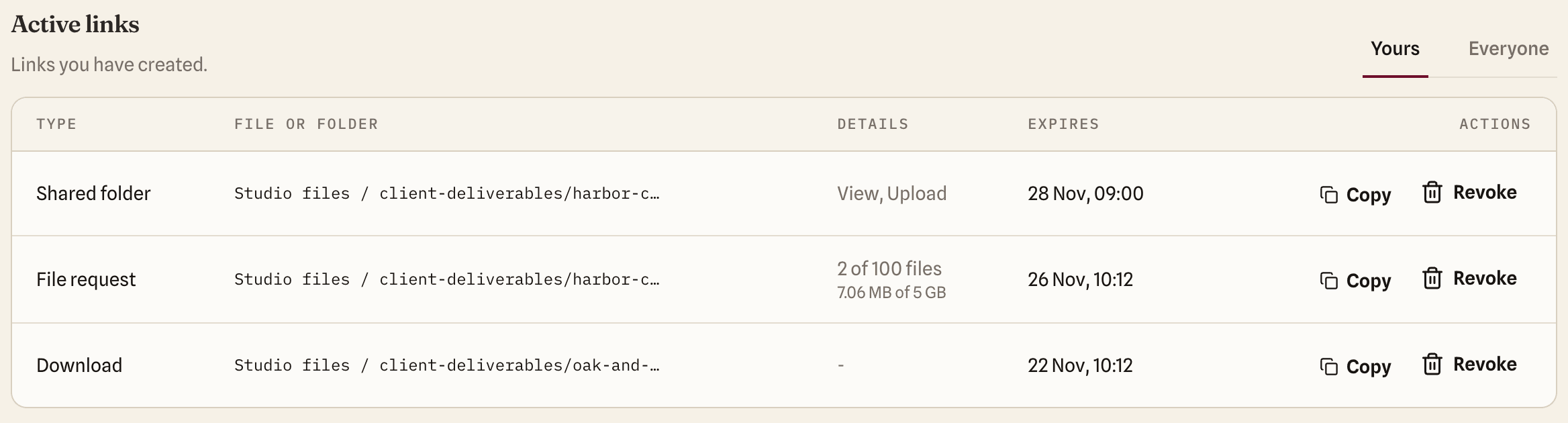
Shared folders are listed on **Shared links** with what they allow, next to your download links and file requests.
Revoke a shared folder here to stop it at once.
## Storage settings
Uploads and downloads go straight between the visitor's browser and your storage, like they do in the app. If your bucket blocks browser access, uploads and downloads through the link fail the same way; see [CORS](/docs/files/cors/).