---
title: Collect files with a file request
description: "Send a link that lets anyone upload files into one folder, without an account and without seeing what's already there."
section: Files
order: 85
audience: [owner, admin, member]
status: published
lastVerified: 2026-09-23
sources:
- web/src/components/app/bucket-browser/RequestFilesDialog.tsx
- web/src/components/drop/DropPage.tsx
- src/objects/routes/drop.ts
- src/objects/routes/drop.complete.ts
- src/routes/drop.ts
- src/lib/upload-links.ts
---
A file request is a link that lets anyone upload files into a folder you choose. It's for collecting files from people outside quickS3, like invoices from a supplier or photos from a client. The people uploading don't sign in, and they can't see, download, or change anything in the folder.
## Create a file request
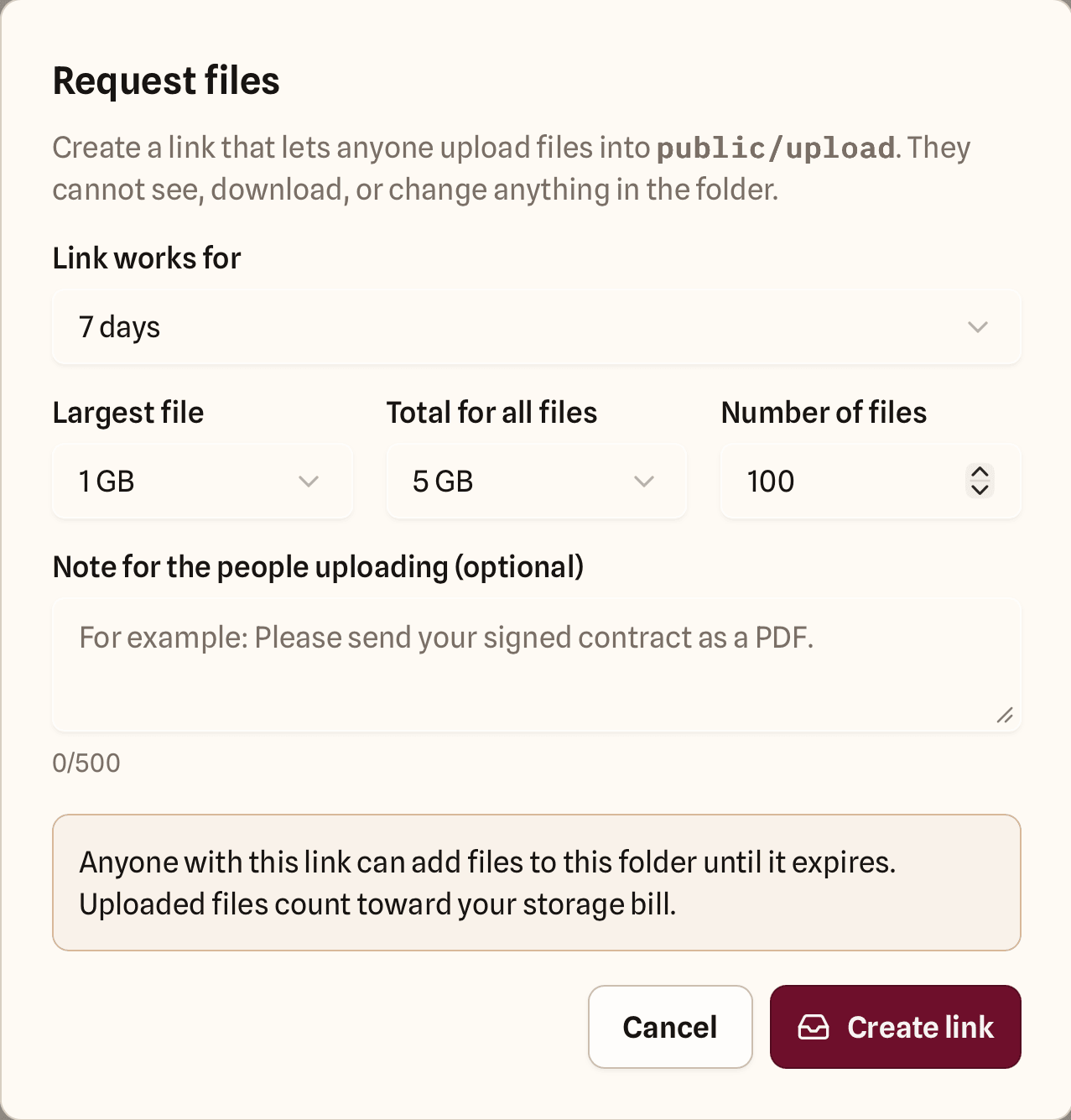
1. Open the folder that should receive the files, and select **Request files** in the toolbar. You need Write and Share on the folder. Without them, or if your organisation has switched file requests off, the button isn't shown.
2. Choose how long the link works. 7 days is selected to start with.
3. Set the limits: the largest file, the total for all files, and the number of files. They stop one link from filling your storage.
4. Optionally, add a note for the people uploading, like which files you need.
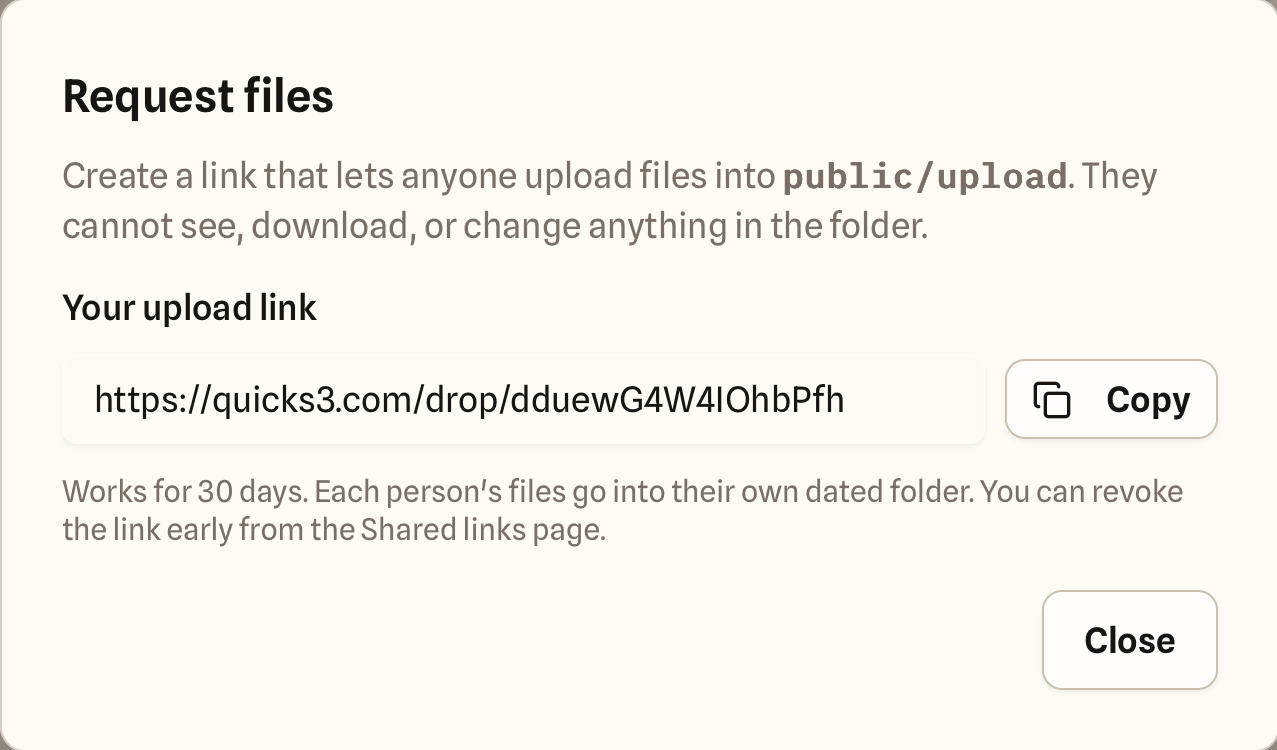
5. Select **Create link**, then **Copy**, and send the link.
Keep the lifetime and limits as small as works for you.Copy the link and send it to the people uploading.
Anyone with the link can add files until it expires, and those files count toward your storage bill. Keep the limits and the lifetime as small as works for you.
## What the person uploading sees
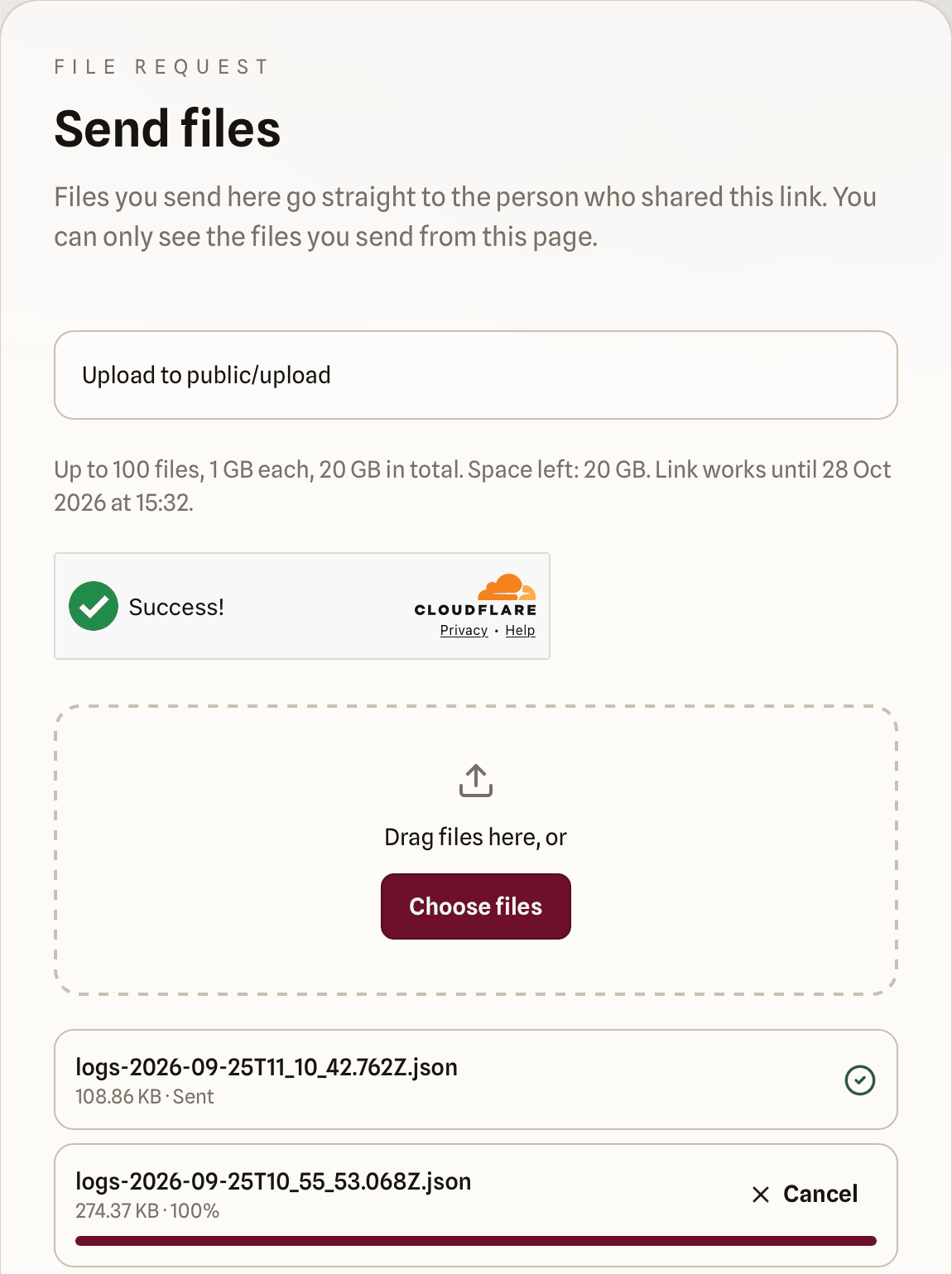
The link opens a quickS3 page with your note, the limits, and when the link expires. They complete a quick check that they're human, then drag files onto the page or choose them. Each file shows its progress and can be cancelled. The page never shows the bucket, the folder, or files anyone else sent.
The person uploading sees only the files they send.
## Where the files go
Each visit to the page gets its own folder inside the one you chose, named with the date and a random code, like `invoices/2026-09-23-k3v9x2ab/`. Files keep their names, with unsafe characters removed. A file never replaces an existing one; if the same name is sent twice in one visit, the second becomes `name (2)`.
Each file is recorded in the [audit log](/docs/audit/overview/) as **Upload via file request**, under your name, because it uses your access. quickS3 doesn't record who uploaded it or their IP address.
## When a file request stops working
A file request stops accepting files when the first of these happens:
- It reaches its expiry time.
- It reaches its file count or total size limit.
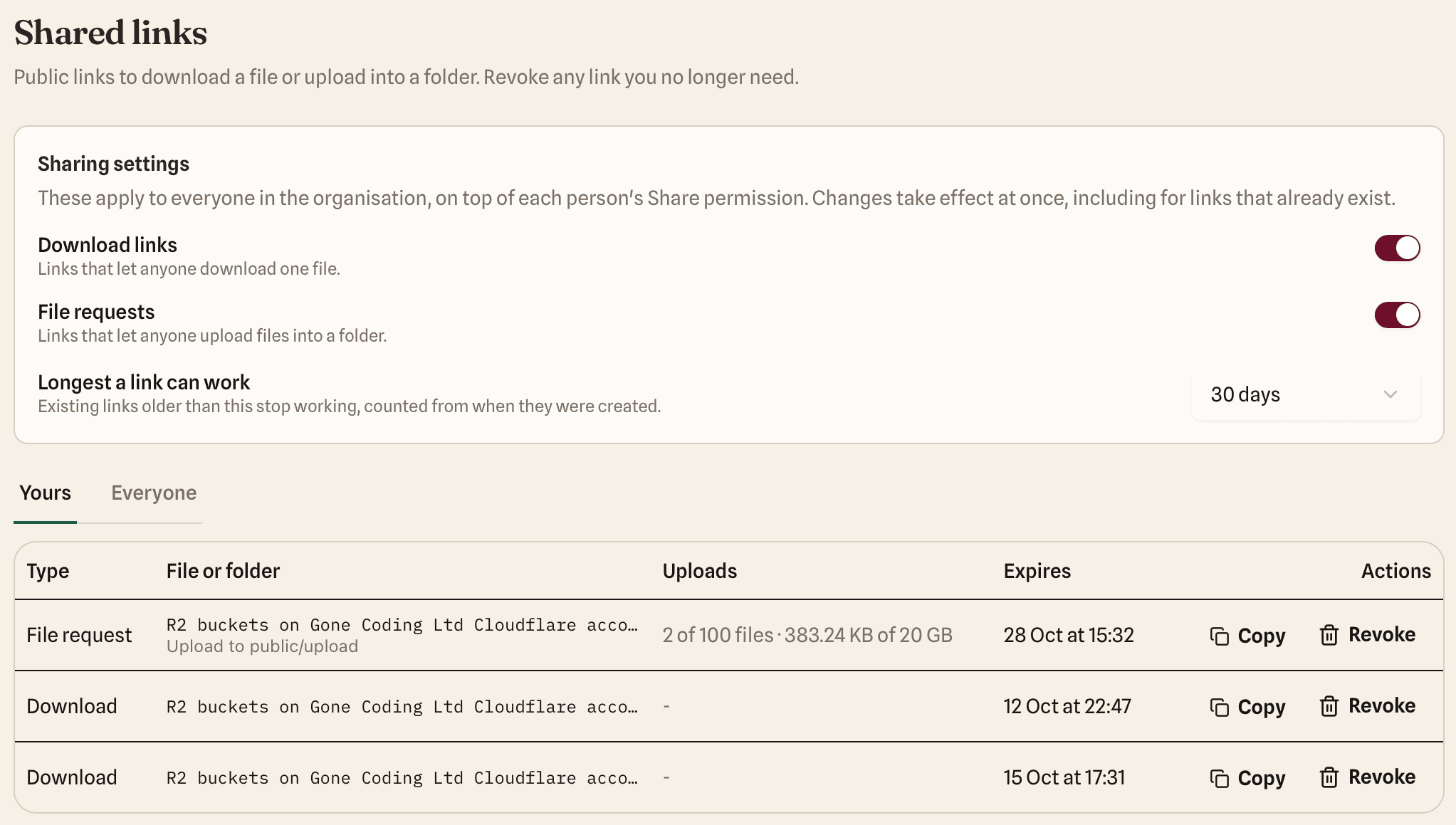
- You or an Owner or Admin revokes it on the **Shared links** page. This is permanent: uploads in progress are stopped, files already received stay in the folder, and you need a new file request to collect more.
- You lose Write or Share on the folder, or leave the organisation.
- An Owner or Admin switches file requests off for the organisation, or lowers the longest a link can work below its age.
Open **Shared links** in the sidebar to see how many files each request has received.
The Uploads column shows how much of each limit a request has used.
## Storage settings
The files go straight from the uploader's browser to your storage, like [uploads in the app](/docs/files/upload/). If your bucket blocks browser uploads, the page tells the uploader that the link's owner needs to fix a storage setting; see [CORS](/docs/files/cors/).
On Azure Blob Storage, each file can be at most 5000 MiB (just under 5 GB). Azure's upload links can't limit a file's size in advance, so quickS3 checks each file once it arrives and deletes any that don't match the size the uploader declared. Other providers reject a wrong-sized file before it's stored.